Access this screen by clicking next to the colleague's name on the main Colleague list view or by clicking on from the Colleague's record or any of their nested records (learner or preceptor records).
Use the Edit Colleague form to update information on the colleague.
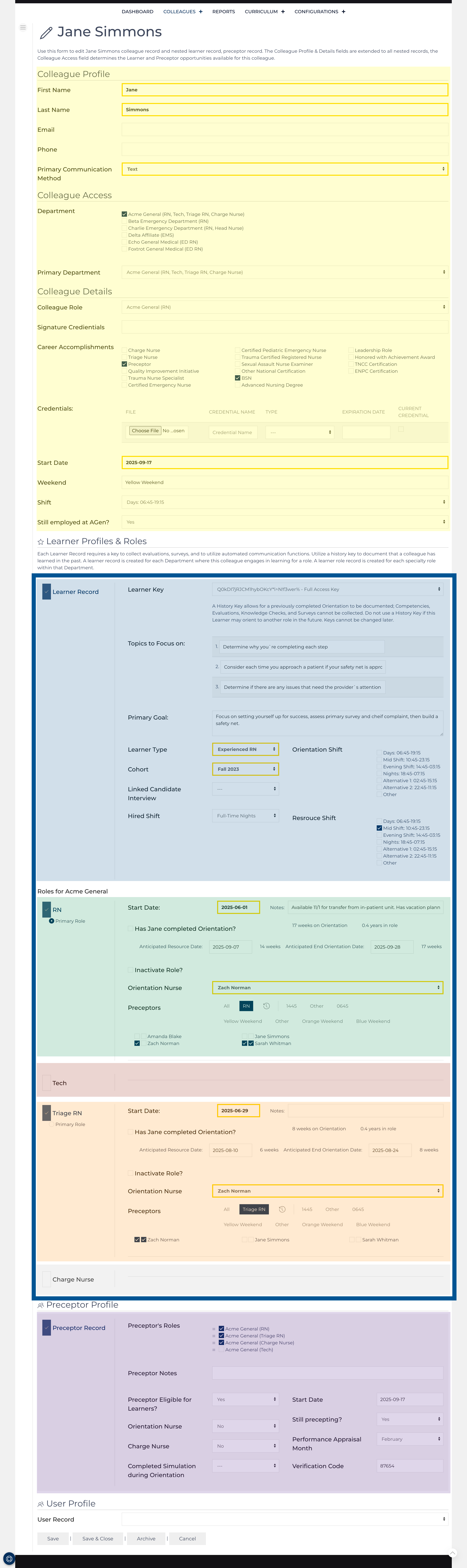
The form is divided into four sections:
First fields that are used across all records are controlled by the Colleague record (highlighted in yellow).
- Colleague Profile (name & contact information)
- Colleague Access (Affiliates or departments this colleague practices in or provides instruction)
The locations open up potential learner records that can be addded and are passed down to the nested preceptor record. - Colleague Details (Role, Credentials, Weekend, Shift)
Second fields that are used to control learner recrods (highlighted in blue) and their nested learner role records (outlined in blue)
- Each Learner Record has three required fields (Learner Key, Cohort, and Learner Type)[1, 2]
- Nested Learner Roles are highlighted below:
- RN highlighted in green
- Tech highlighted in red (this is not a selected role for the example learner)
- Triage RN highlighted in orange
- Charge RN highlighted in silver (this is not a selected role for the example learner)
- Each Learner Role record requires a Start Date, Orientation Nurse to monitor progress, and designated preceptors.
Third fields that are used to control the preceptor record (highlighted in purple)[1, 2]
- Each Preceptor needs the roles they can teach designated.
- A start date for their preceptorship
- A verification code to use to sign Competency Documents.
The Fourth area is controlled by User records if a user record is created and linked to this colleague the connection will be noted in the drop down.
Learner and Learner Role Records
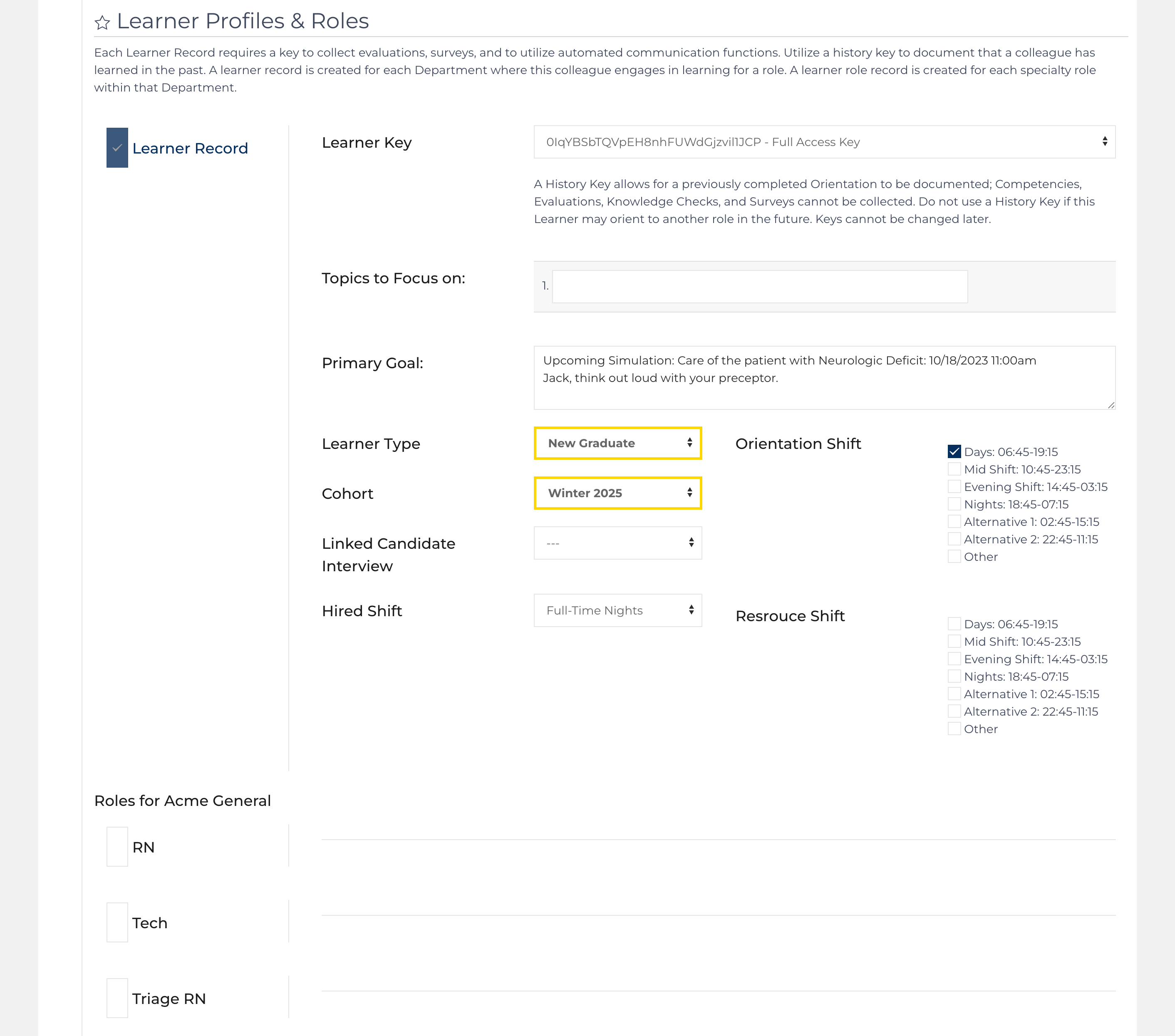
Clicking the check box next to Add AGen Learner Record expands fields that are unique to that Learner Record. In this case, AGen is the department where the colleague will be oriented to a role(s). Once the Colleague record is saved, the Learner record is created[1], and values from the Colleague record are carried over to the Learner record. Eliminating the need to duplicate any data entry.
Required fields:
- Learner Key [enables communication; choose a history key if documenting past learning]
- Cohort [organizes learners into groups]
- Learner Type [experience this learner brings at their start date]
- Select at least 1 role [select at least 1 of the 3 large rectangles below to activate a role; additional fields will appear].
Optional fields: (all fields used to communicate the focus of this orientation or how the orientation was organized.)
- Topics to Focus on [Enter up to 5 lines of target activities/topics for this learner based on what they are currently learning across all roles.]
- Primary Goal [Major focus at this point in the learner's orientation]
- Linked Candidate Interview [Choose an interview candidate to match]
- Hired Shift [Indicate the shift this learner was hired for]
- Orientation Shift [Choose shifts this learner completed orientation shifts]
- Resource Shift [Choose shifts this learner completed resource shifts]
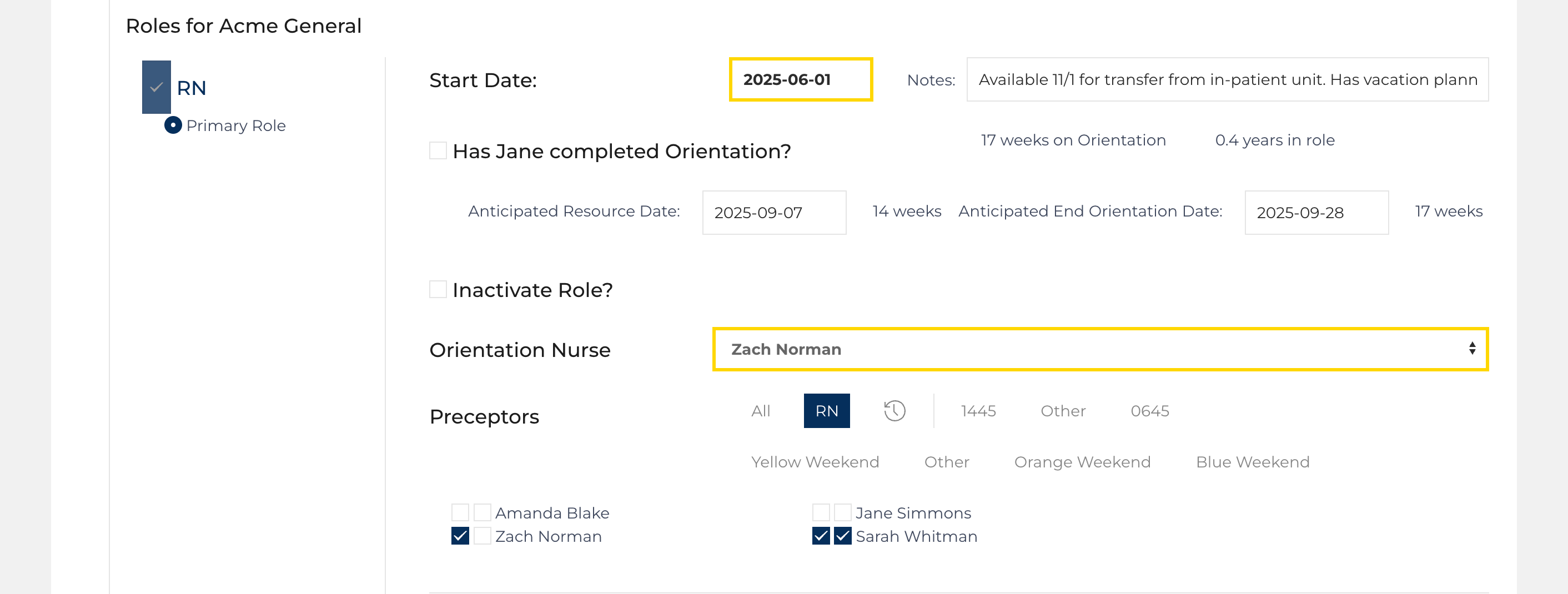
Learner Role Required Fields
- Start Date for role / anticipated end orientation dates.
- Orientation Nurse [select one Orientation Nurse user to receive evaluations]
- At least 1 primary preceptor [select at least 1 primary preceptor by clicking the box immediately left of the name, the alternate preceptor box will also check. Hover over the checkboxes for instructions.]
- The role can be inactivated if the Colleague no longer serves in it.
Preceptor Record
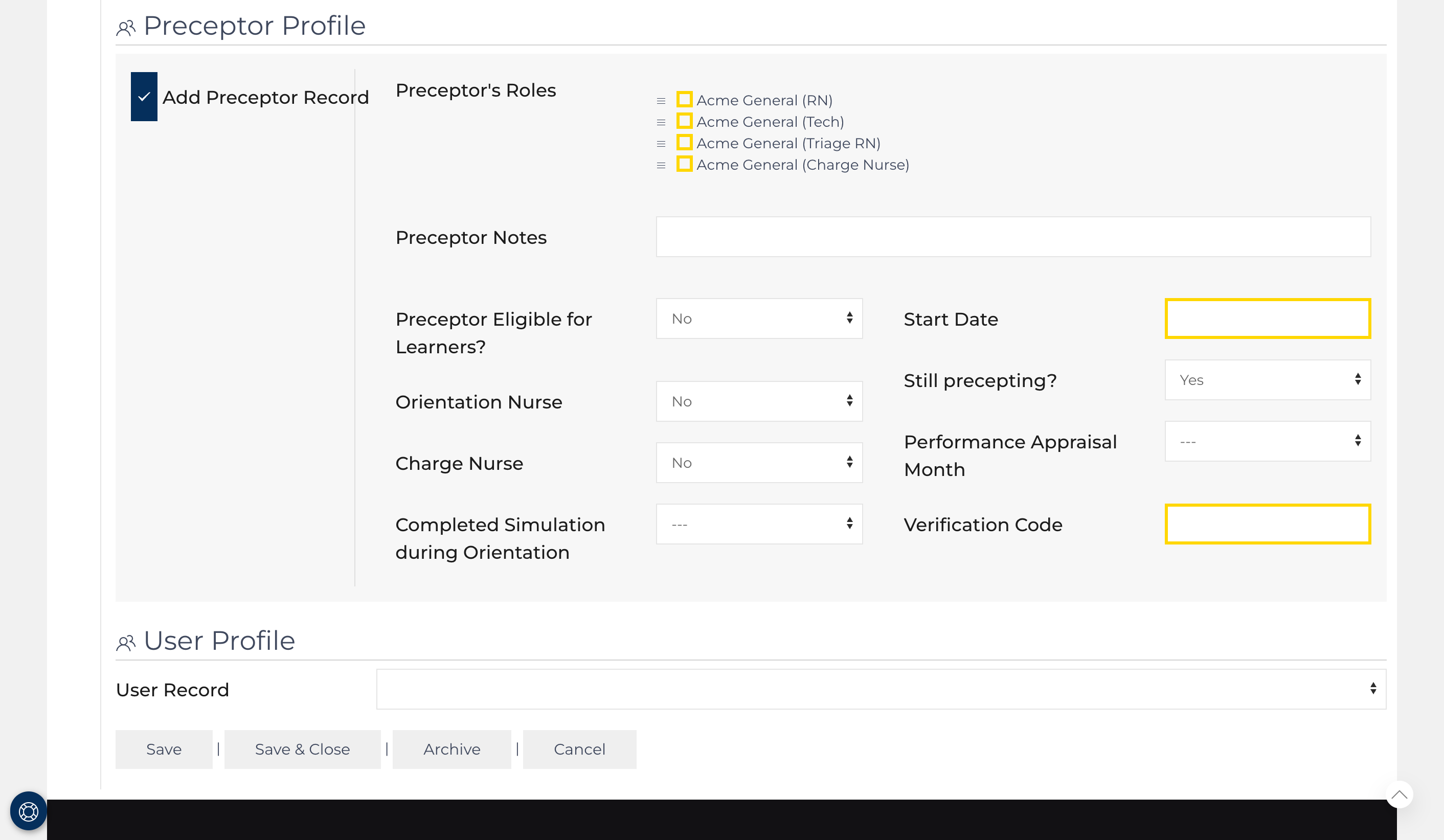
Clicking the check box next to Add Preceptor Record expands fields that are unique to creating a preceptor. Once the Colleague record is saved, the Preceptor record is created[1], and values from the Colleague record are carried over to the Preceptor record. Eliminating the need to duplicate any data entry. All fields can be updated
Required fields
- Preceptor Roles: Select at least one role across all the affiliates for the colleague[3]. [re-organize the roles by dragging and dropping the roles, prioritizing the role the colleague is most likely to teach].
- Start Date [when did the preceptorship start within this organization]
- Verification Code[4] [any combination of letters and numbers, used to verify competency documents]
Optional Fields
- Preceptor Notes [text explanation - Best Practice: designate special roles such as "helping instruct a class" or "back-up preceptor"]
- Preceptor Eligible [Yes/No - if no, the Preceptor will not be listed on the Schedule Add view]
- Orientation Nurse [Yes/No - if Yes, the Preceptor will be available to be designated as an Orientation Nurse for a Learner Role record or as a Course Leader, typically has a User record created.]
- Charge Nurse [Yes/No - filter option]
- Completed Simulation [options defined by the default Configuration record]
- Still Precepting? [Yes/no - if No, additional fields appear documenting the end date for this colleague's preceptorship.]
- Performance Appraisal Month [Select 1 month - useful for organizations that utilize the Preceptor Assessment as a part of the annual performance appraisal.]
User Record

Select the user record for this colleague. A user record can only be connected to one record at a time. Only colleagues with a private user log-in (Leadership User or Orientation Nurse User) will have a selection in this field.