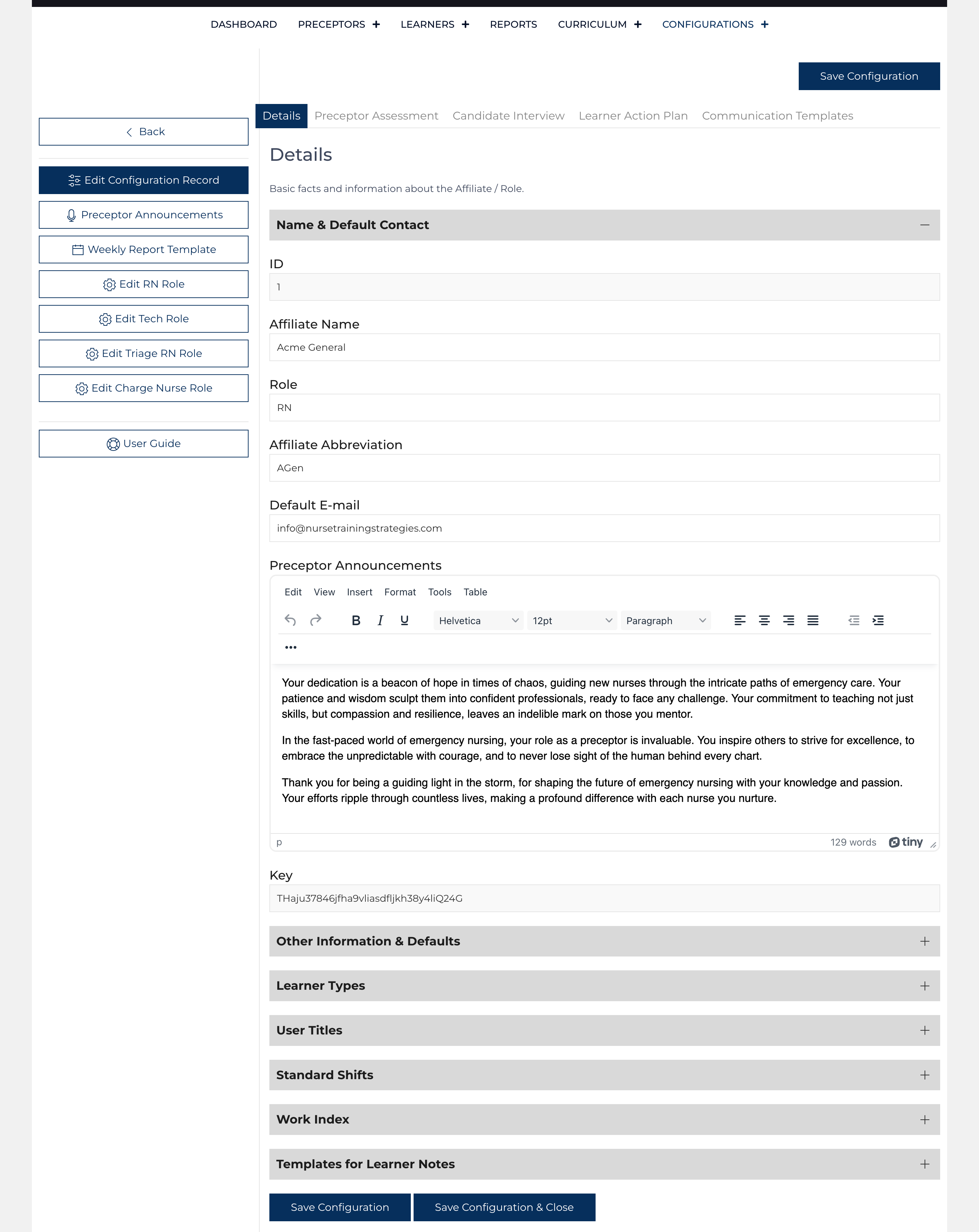
The data points contained in a single configuration record are organized into six tabs and further divided into more manageable pieces within each tab. Users without permission to edit the configuration can view the settings and make recommendations to the appropriate user.
The Quick Links on the left follow the user as they scroll. Clicking a link on the left will redirect the user to another screen. Each Affiliate Configuration record must have at least one Role configuration record. Each Affiliate can orient learners to multiple roles. Each role has its template for the Learner, Preceptor, and Provider Evaluation as well as the Leader Meeting. The Affiliate has only one Weekly Report Template that summarizes information for all roles. Default values for Communication Templates and other fields have been compiled.
Remember to click before navigating away from the edit screen.
Most items have editing hints/instructions if you hover over the title of the field. Many items display example data based on the saved Configuration. Clicking the toggle allows the code behind the content to be edited.
Details
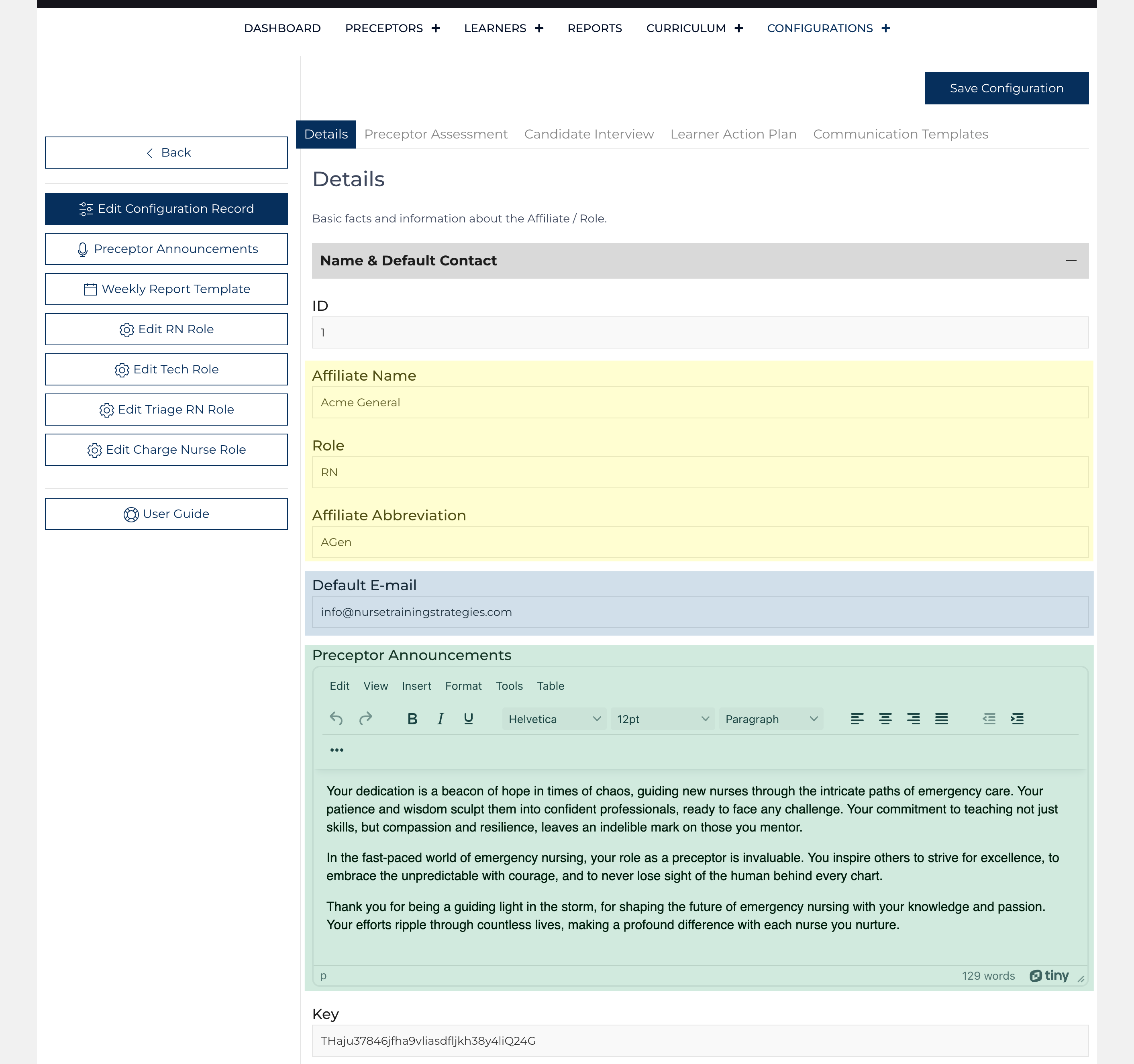
Affiliate / Department Name: Type Unique Name
Role: Type name of default role
Affiliate Abbreviation: Type sort name
Default Email Address: Notification Address for Communication Templates 1, 2, and Schedule Changes
Preceptor Announcements: Displays on the Preceptor page for all members of this Affiliate and displays on the Weekly Report.
Key: 30 Character Key supplied by developer[1]
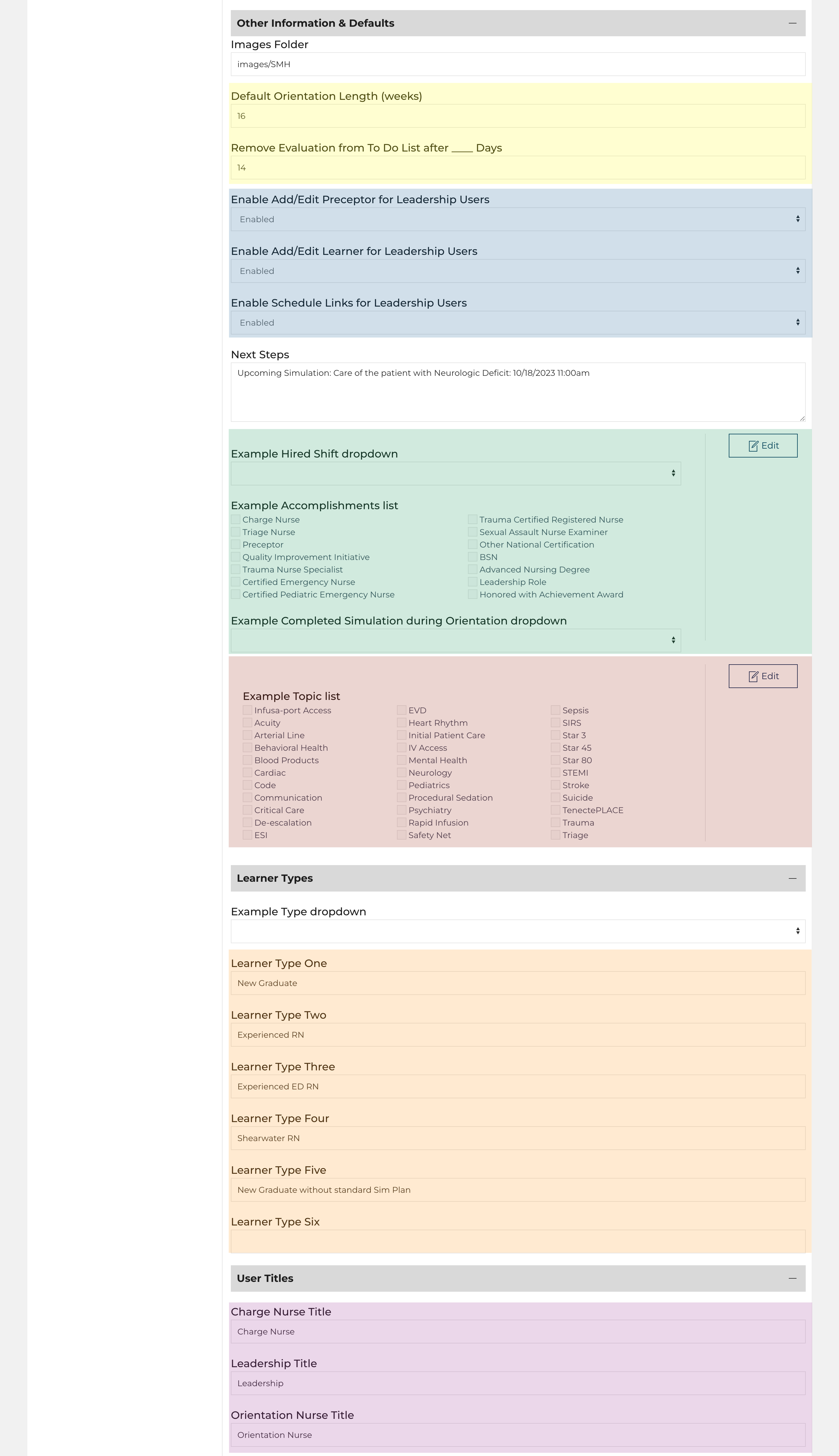
Images Folder: images/[folder_name][2]
Fields highlighted in yellow (figure to the right)
Default Orient. Length: Integer (weeks)
Days to Convert: 14 (Events > X days old no longer solicit feedback).
Fields highlighted in blue (figure to the right)
Enable Preceptor: Select: Yes / No, if yes, icons appear for the Leadership users to add/edit records to the Preceptor table
Enable Learner: Select: Yes / No, if yes, icons appear for the Leadership users to add/edit records to the Learner table
Enable Schedule: Select: Yes / No, if yes, icons appear for the Leadership users to add/edit events.
Next Steps: Displays the default message to be inserted into the Next Steps field on a Formal Evaluation
Fields highlighted in green (figure to the right)
Hired Shift Array: Unique Keys, comma-delimited; (semi-colon separated) Display Values, comma-delimited.
Accomplishments Array: Displayed on Leadner and Preceptor records. Unique Keys, comma-delimited; (semi-colon separated) Display Values, comma-delimited.
Preceptor Orientation Label:[3] Title displayed next to Preceptor Orientation Array Dropdown
Preceptor Orientation Array: Unique Keys, comma-delimited; (semi-colon separated) Display Values, comma-delimited.
Fields highlighted in red (figure to the right)
Topic Array: Displayed on Events, Curriculum, and Evaluation records. Unique Keys, comma-delimited; (semi-colon separated) Display Values, comma-delimited.
Fields highlighted in orange (figure to the right)
Learner Type 1: Name of learner type (segment types of learners, each segment forms its own benchmark for each role)
Learner Type 2
Learner Type 3
Learner Type 4
Learner Type 5
Learner Type 6
Fields highlighted in purple (figure to the right)
Charge Nurse Title:[4] Enter Text [Charge Nurse]
Orientation Nurse Title: Enter Text [Orientation Nurse]
Leadership Title: Enter Text [Leadership]
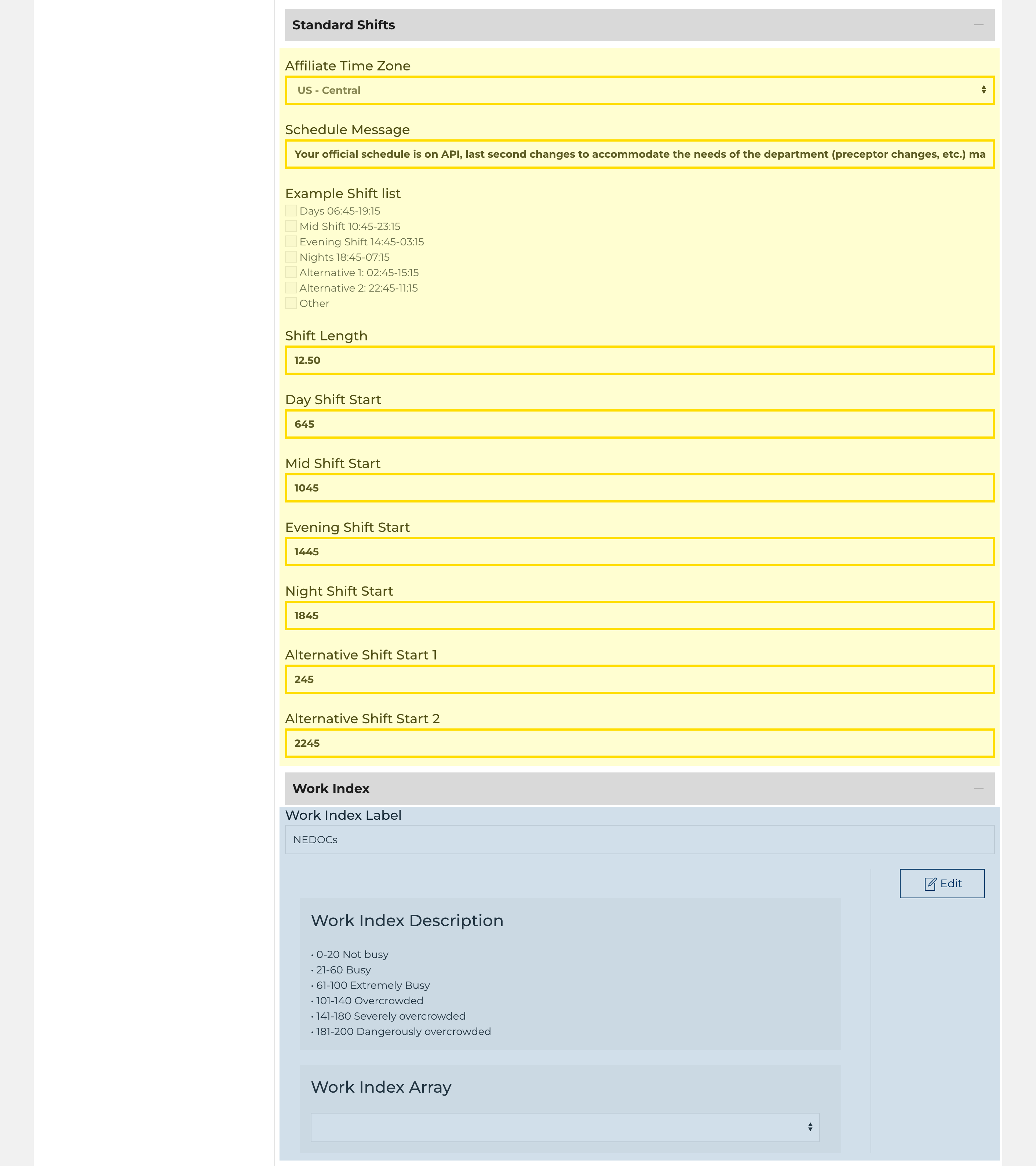
Fields highlighted in yellow (figure to the right): a value is required in each of these fields.
Time Zone: Select One: US Time Zone
Hours Day Shift: Start time (numbers only) [0645]
Hours Mid Shift: [1045]
Hours Evening Shift: [1445]
Hours Night Shift: [1845]
Alternative Shift Start 1: [2245] Creates shift options for scheduling, but cannot be matched with Work Index. 24-hour Average result used instead.
Alternative Shift Start 2: [0245]
Hours Shift Length: Standard shift length
Fields highlighted in blue (figure to the right)
Work Index Label: [NEDOCS, CEDOCS, EDWIN, etc.] If this field is blank Work Index will be ignored.
Work Index Description: Enter Text
Work Index Array: Unique Keys, comma-delimited; (semi-colon separated) Display Values, comma-delimited.
Announcements
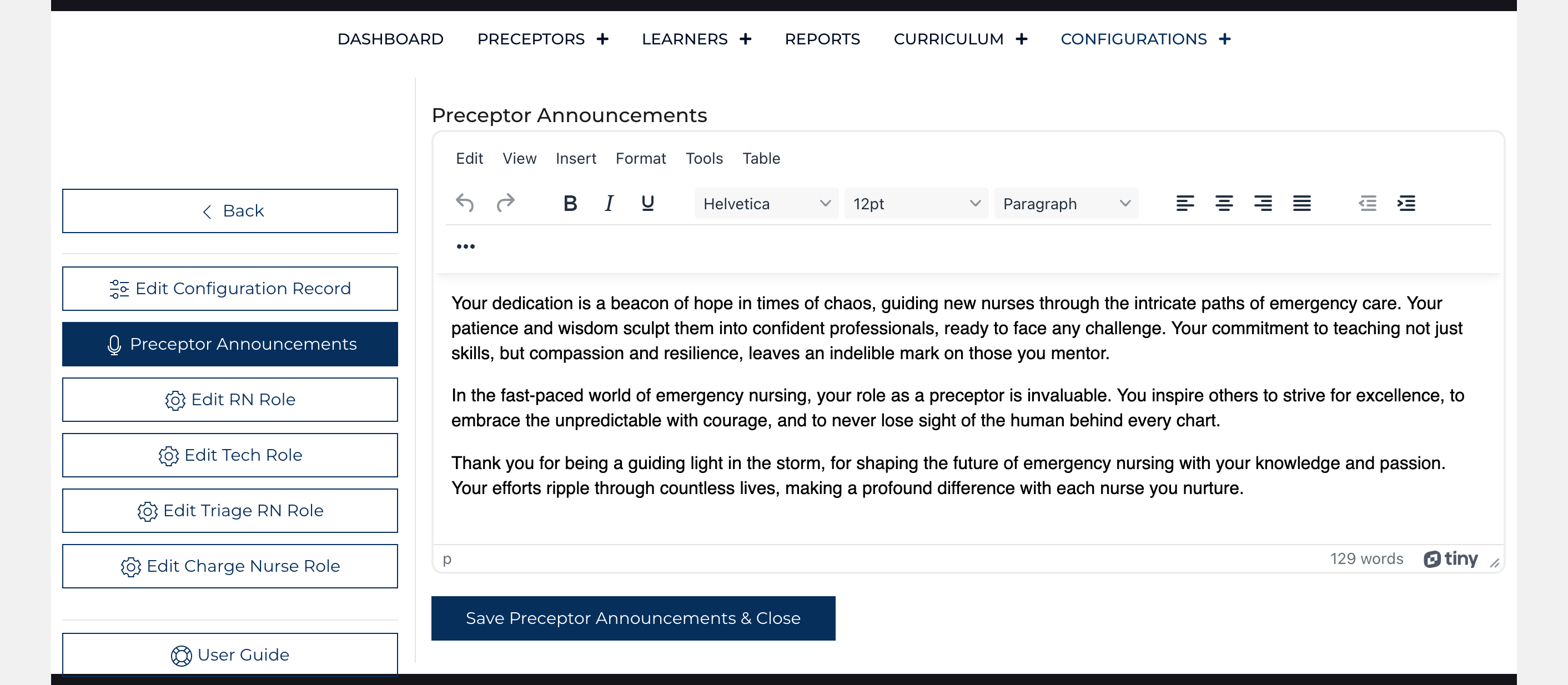
A limited view that any Orientation Nurse user or Leadership user, regardless of having permission to edit the entire configuration record, can update.
Preceptor Announcements: Displays on the Preceptor page for all members of this Affiliate and displays on the Weekly Report.
Learner Notes Templates
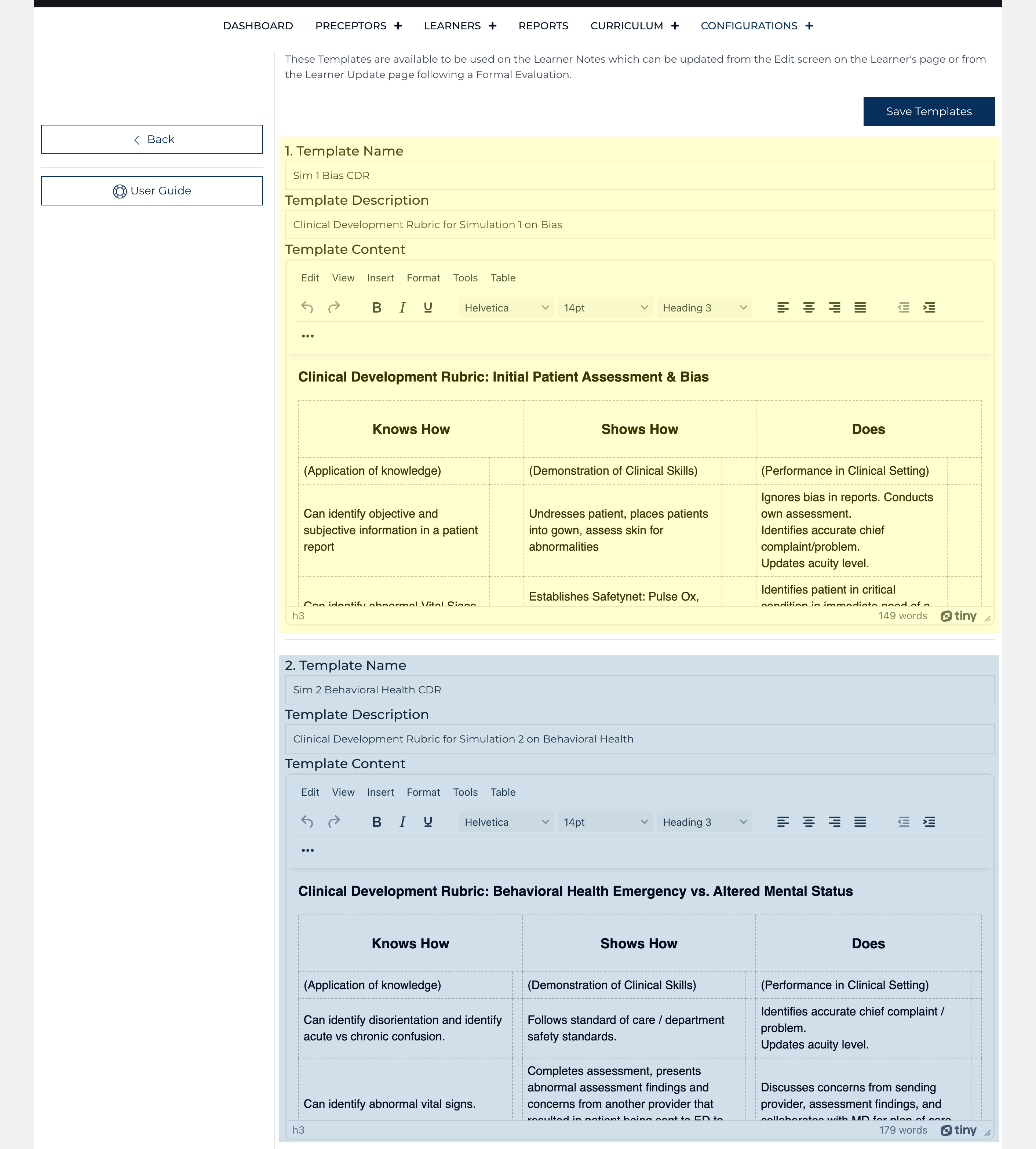
Multi-field repeatable with up to 12 templates that can be used on the Learner Notes field:
Each entry must have a Template Name, Description, and Content.
The image to the right shows Template one highlighted in yellow and the second highlighted in blue.
Preceptor Assessment
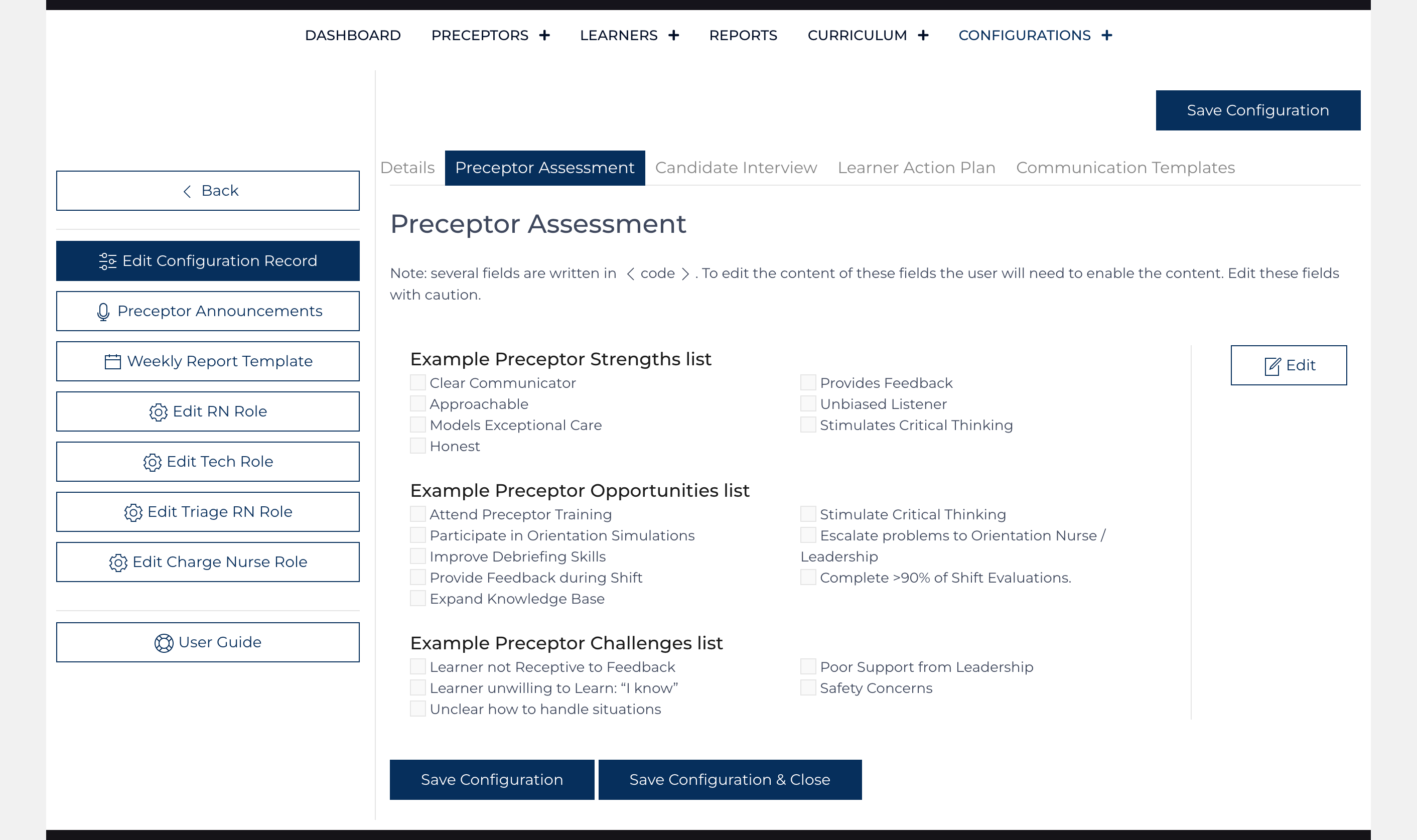
The Preceptor Assessment is a form completed by an Orientation Nurse following the completion of a preceptor's time with a learner. It is designed to facilitate a discussion regarding the strengths, opportunities, and challenges that a preceptor can take advantage of for an upcoming learner. The Configuration record holds three arrays where a user can adjust the check boxes that appear on the form. Clicking the toggle allows the code behind the content to be edited.
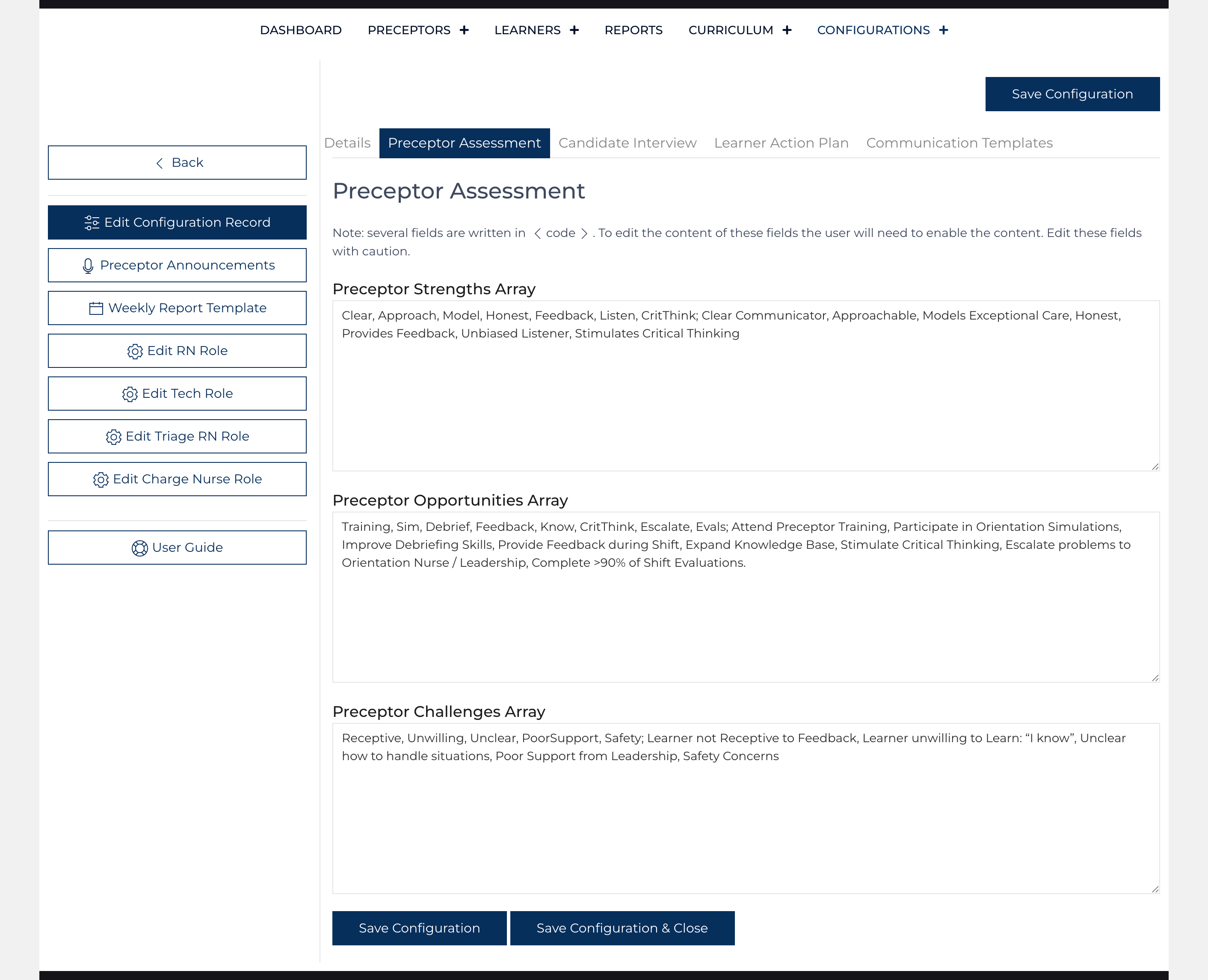
Preceptor Strengths Array: Unique Keys, comma-delimited; (semi-colon separated) Display Values, comma-delimited.
Preceptor Opportunities Array: Unique Keys, comma-delimited; (semi-colon separated) Display Values, comma-delimited.
Preceptor Challenges Array: Unique Keys, comma-delimited; (semi-colon separated) Display Values, comma-delimited.
Default values for these fields are found here.
Candidate Interview
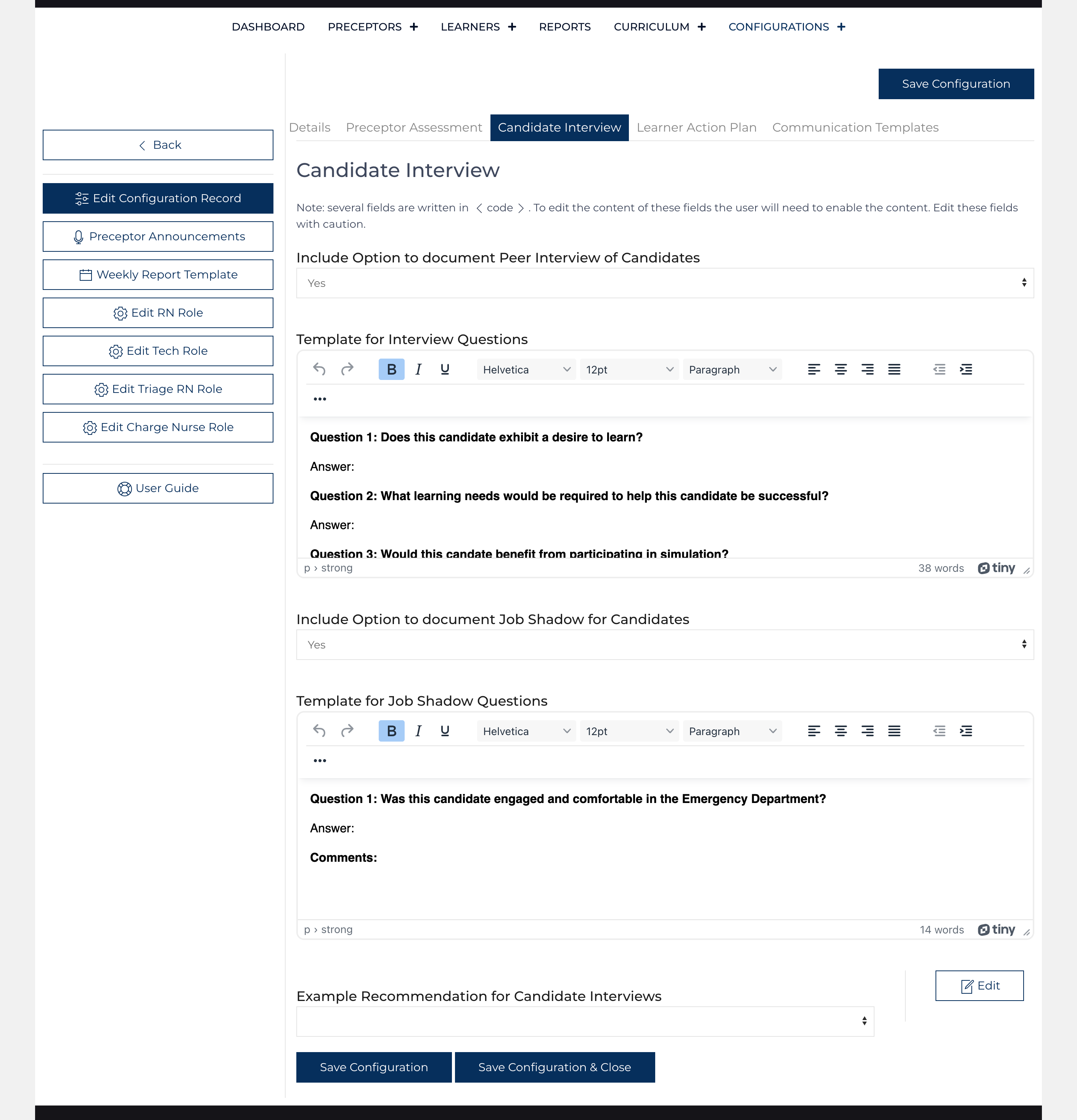
The Candidate Interview form contains a Text Area where the interview panel can document their findings and choose a recommendation from a dropdown, or a job shadow panelist or panel can also document their findings and choose a recommendation. The Configuration record for the Affiliate controls the items and content that are displayed on the Candidate Interview form.
Include Option to Document Peer Interview of Candidates: Select Yes / No
Template Interview Questions: Formatted text to give a framework for the interview.
Include Option to Document a Job Shadow for Candidates: Select Yes / No
Template Job Shadow Questions: Formatted text to give a framework for the job shadow.
Recommendations Array: Unique Keys, comma-delimited; (semi-colon separated) Display Values, comma-delimited.
Learner Action Plan
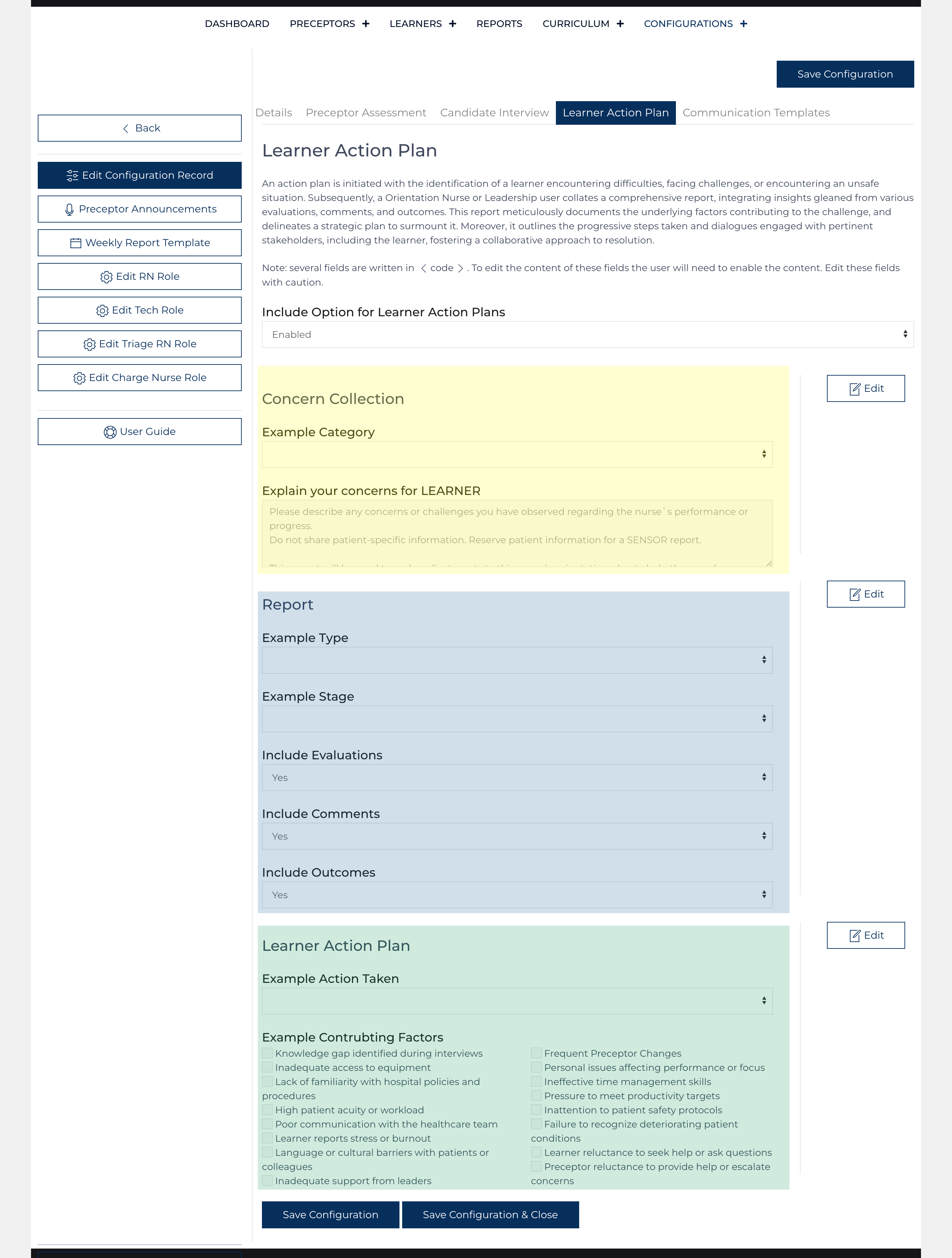
The Learner Action Plan is designed to be used when a concern arises with a Learner's progress through orientation and to document the findings and actions that will be taken to help get the learner back on track. The Configuration record houses the datapoints that control the content that is displayed on this form. The Communication Template 19 houses the e-mail message templates associated with this form.
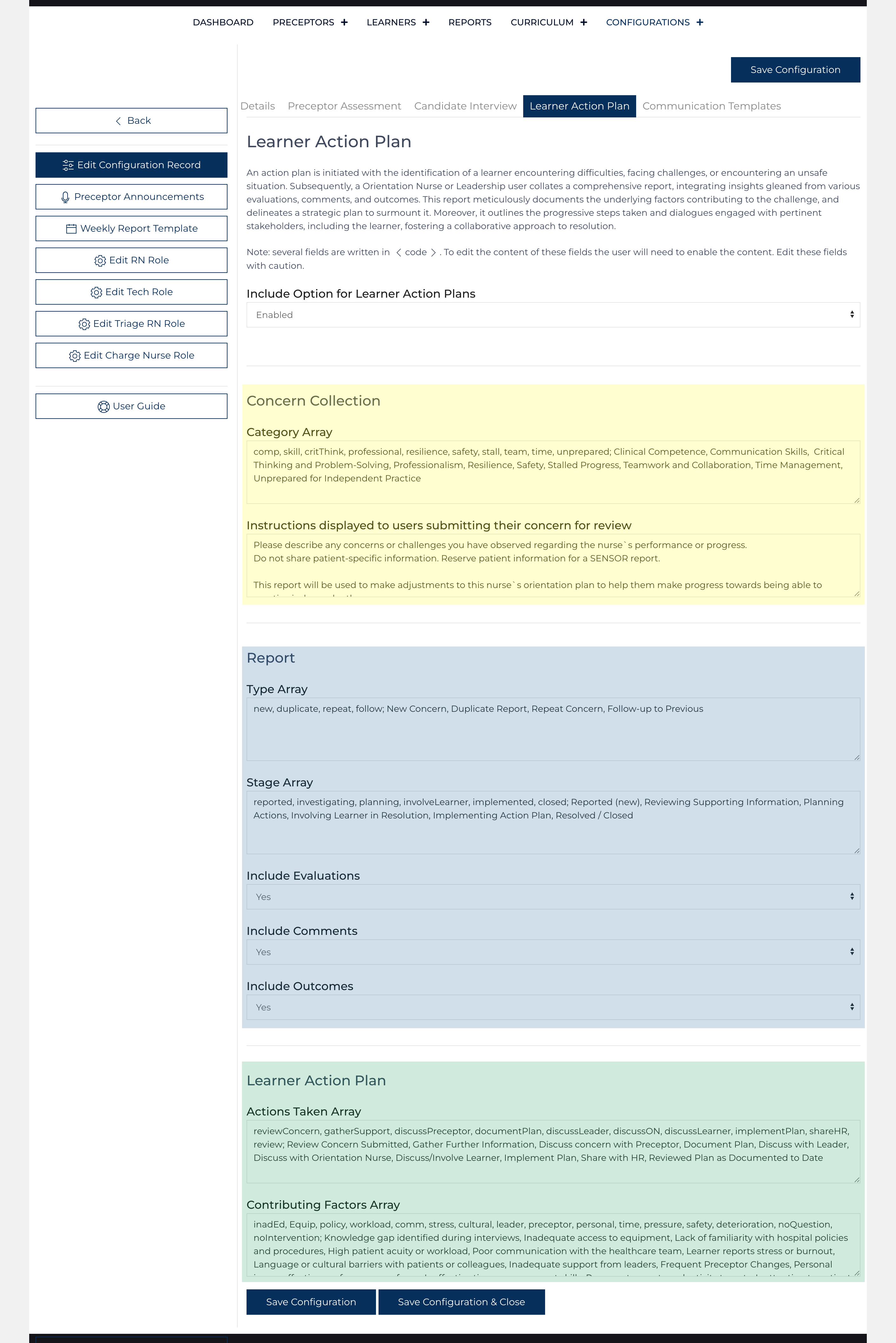
There are three elements of the form: Collection of the original concern to initiate an Action Plan (highlighted in yellow), a report of the evidence (highlighted in blue), and the Action Plan to return the learner to progress (highlighted in green). Clicking the toggle allows the code behind the content in the highlighted fields to be edited.
Include Option for Action Plan: Select Enabled/Disabled (if No, the collection form is hidden and reports cannot be collected for this Affiliate)[5].
Category Array: Forms a dropdown that summarizes the concern.
Unique Keys, comma-delimited; (semi-colon separated) Display Values, comma-delimited.
Instructions: Text on the reporting form.
Type Array: Forms a dropdown the decribes the report.
Unique Keys, comma-delimited; (semi-colon separated) Display Values, comma-delimited.
Stage Array: Forms a dropdown that indicates the progress that has been made on the plan.
Unique Keys, comma-delimited; (semi-colon separated) Display Values, comma-delimited.
Include Evaluations: Forms a dropdown to select Yes/No (shows results within date range given the reporting parameters of the related role)
Include Comments: Forms a dropdown to select Yes/No (shows table or results withi a date range where selected comments cna be highlighted)
Include Outcomes: Forms a dropdown to select Yes/No (shows selected results within a date range)
Actions Array: Forms a dropdown to describe what a user has done a specific date/time to facilitate progress for the learner.
Unique Keys, comma-delimited; (semi-colon separated) Display Values, comma-delimited.
Contributing Factors Array: Forms a series of checkboxes to describe the conditions that lead to the concern.
Unique Keys, comma-delimited; (semi-colon separated) Display Values, comma-delimited.
Default values for these fields are found here.
Communication Templates
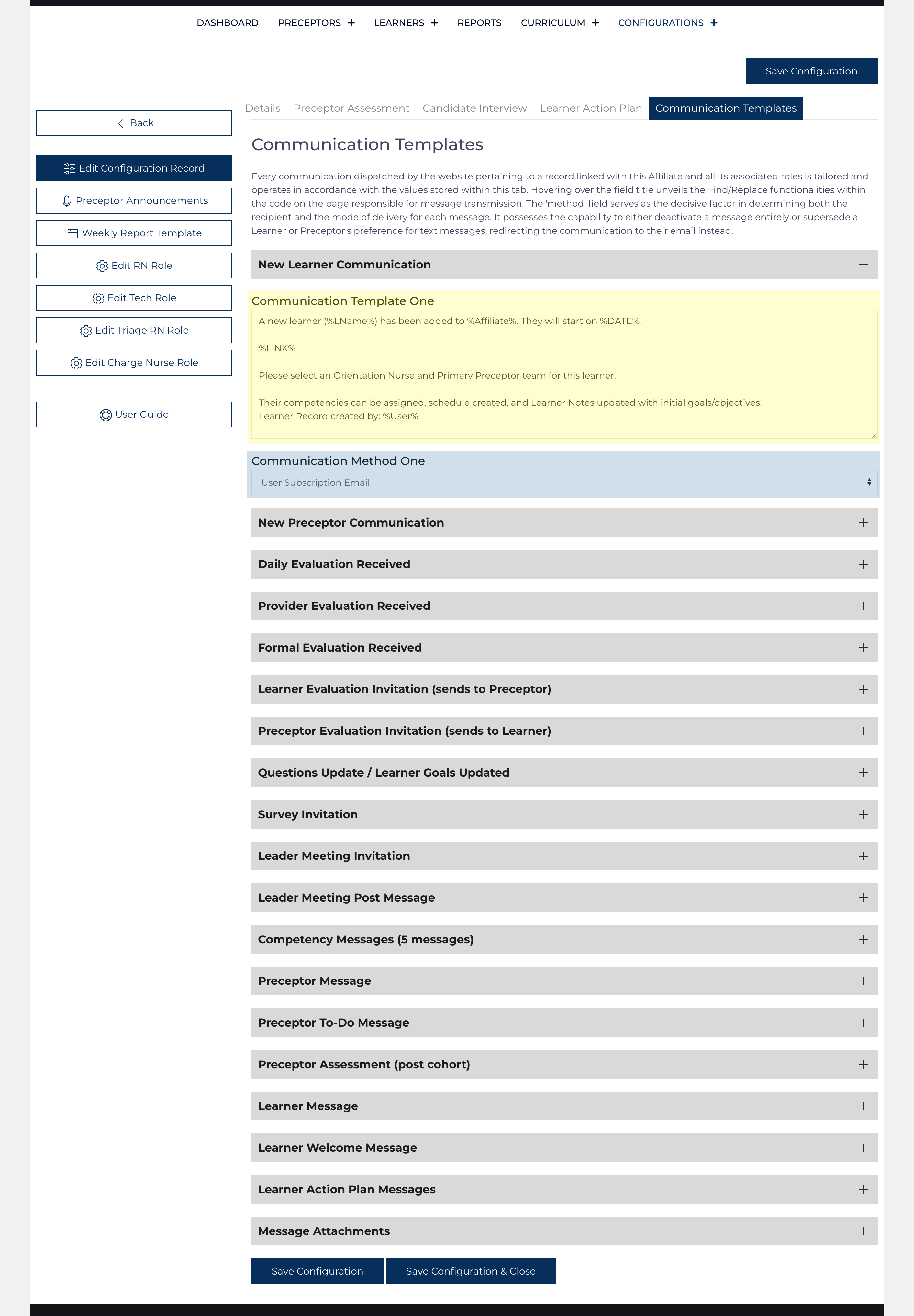
The Communication Templates are used when sending messages regarding records nested under this Affiliate's Configuration record. Defaults and descriptions of how these messages are sent are below. Click here for default message contents.
Communication Template 1: New Learner (Learner Add [auto])
Communication Method 1: Select: [Disabled, User Email, User Subscribed Email]
Communication Template 2: New Preceptor (Preceptor Add [auto])
Communication Method 2: Select: [Disabled, User Email, User Subscribed Email]
Communication Template 3: New Learner Daily Evaluation (Daily Learner Evaluation, Daily Preceptor Evaluation)
Communication Method 3: Select: [Disabled, Email]
Communication Template 4: New Provider Daily Evaluation (Provider Evaluation)
Communication Method 4: Select: [Disabled, Email]
Communication Template 5: New Formal Evaluation (2. Formal Evaluation [auto])
Communication Method 5: Select: [Disabled, Email]
Communication Template 6: Daily Learner Evaluation Reminder (Event Convert [auto], Event View/Edit [manual])
Communication Method 6: Select: [Disabled, Email, Text]
Communication Template 7: Daily Preceptor Evaluation Reminder (Event Convert [auto], Event View/Edit [manual])
Communication Method 7: Select: [Disabled, Email, Text]
Communication Template 8: Learner Page Updated (3. Questions Update [manual])
Communication Method 8: Select: [Disabled, Email]
Communication Template 9: Post Event Survey Reminder (Event Convert [auto], Event View/Edit [manual])
Communication Method 9: Select: [Disabled, Email, Text]
Communication Template 10: Preceptor Reminder (Preceptor View/Edit, To-Do List [manual])
Communication Method 10: Select: [Disabled, Email, Text]
Communication Subject 10: Text: [%Name%'s Preceptor Page]
Communication Attachment 10: Select One: a file uploaded using Communication Attachments below.
Communication Template 11: Leader Meeting Schedule Reminder (Add Leader Meeting [manual])
Communication Method 11: Select: [Disabled, Email]
Communication Template 12: Preceptor Assessment Completed [manual]
Communication Method 12: Select: [Disabled, Email]
Communication Template 14 A: Competency Assign List (Send list of documents when documents are assigned [manual])
Communication Template 14 B: Competency Submitted to Verify (Learner requests signature [manual])
Communication Template 14 C: Competency Verified (Confirmation that the document is completed [manual])
Communication Template 14 D: Competency Approval (When template changed, a leader must review and approve [auto])
Communication Template 14 E: Competency Rejected (Preceptor, Orientation Nurse, or Leader returns the document to the Learner, unable to sign [manual])
Communication Method 14: Select: [Disabled, Email]
Communication Template 15: Learner Message: To Do List [manual]
Communication Method 15: Select: [Disabled, Email, Text]
Communication Template 16: Preceptor Message: To Do List [manual or automatic if Preceptor has selected Communication Method Digest]
Communication Method 16: Select: [Disabled, Email, Text]
Communication Template 17: Learner Welcome Message: [manual]
Communication Method 17: Select: [Disabled, Email]
Communication Subject 17: Text: [Welcome to the Department!]
Communication Attachment 17: Select One: a file uploaded using Communication Attachments below.
Communication Template 18: Leader Meeting: Post Message [manual]
Communication Method 18: Select: [Disabled, Email (subscribed users)]
Communication Template 19 A: Concern Reported on an Evaluation or the link to the Learner Page [manual]
Communication Template 19 B: Learner Action Plan Update w/Information
Communication Template 19 C: Learner Action Plan Update w/Plan
Communication Method 19: Select: [Disabled, Email (selected users)]
Communication Attachments: Repeatable table that uploads or deletes files, saves the file's display name