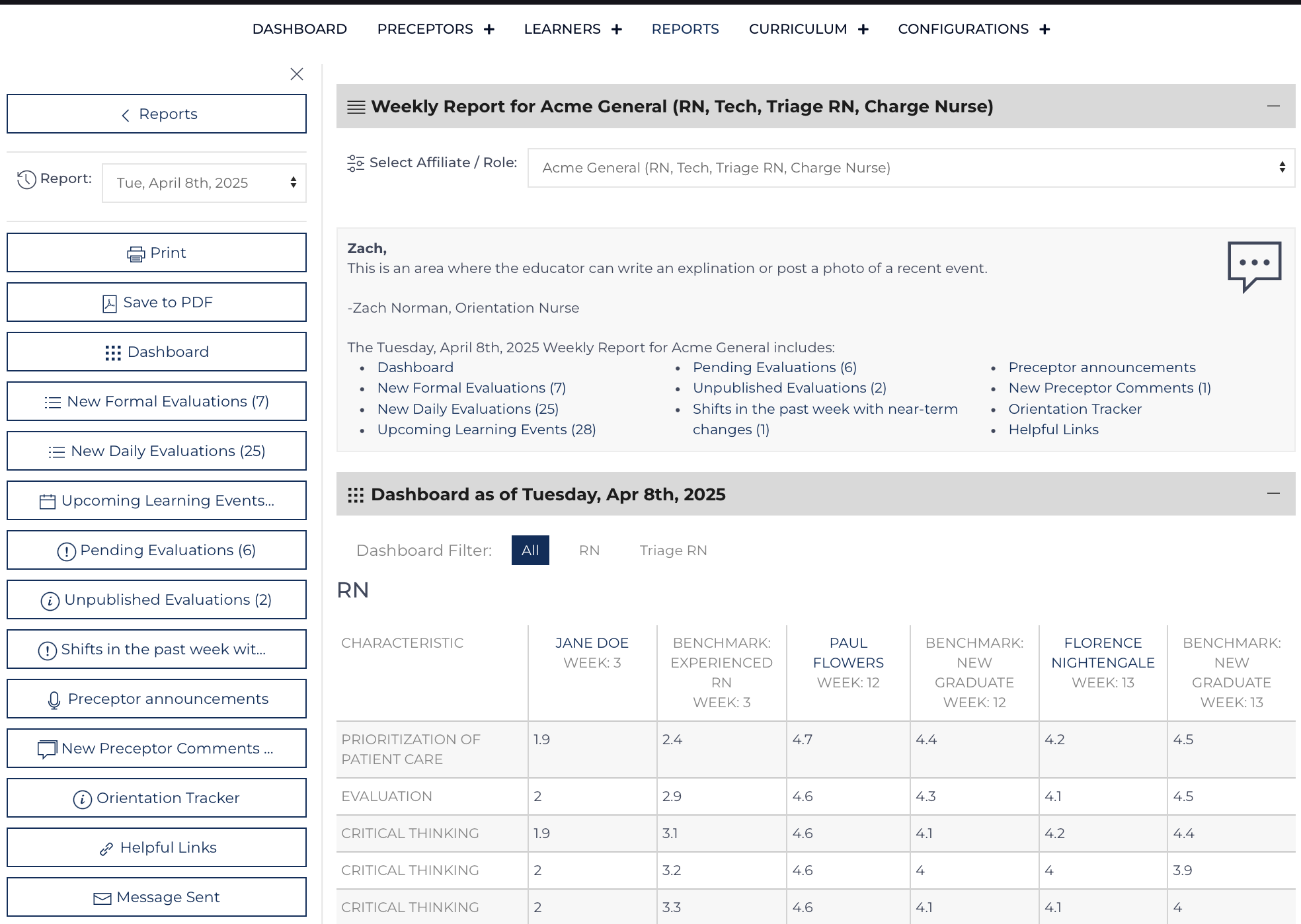
Links to a comprehensive report are sent on a designated day each week (Monday-Thursday) as determined by this template to subscribed users. This template's values are passed to a report controller that is created on the Friday before the report is sent. Click here to learn more about the Weekly Reports.
Each section is displayed because there is content to report and because the template and report controller indicate to include the information should be included. The sections of the report are:
- Report Message
- Dashboard (for each Role)
- New Evaluations (Daily and Formal Evaluations)
- Upcoming Events
- Pending & Unpublished Evaluations
- Changed Events
- Preceptor Announcements
- Preceptor Comments
- Orientation Tracker
- Helpful Links
Report Text Invitation
Enable the Weekly Report: Select 1 [Disabled, Enabled]
Email Address for Orientation Nurse Message: Text [E-mail Address]
E-mail Template for Orientation Nurse Message
<p>Good Morning %NAME%,</p>
<p>This message includes links to the Learning Center. Please log-in to your account <u><a href="/%LINK1%" target="_blank">first</a></u>.</p>
<p>Use this link to write the introduction and configure the elements for the <strong><a href="/%LINK2%" target="_blank">%AFFILIATE% Weekly Report</a></strong>. The report will be sent on: %DATE% at 10:15am CST. If no action is taken, the report will be sent as scheduled without an introductory message, and the elements will be displayed per the template.</p>
<p>Thank you. <br />-Learning Center</p>
Day of Week to Send Report: Select 1 [Monday, Tuesday, Wednesday, Thursday]
Weekly Report
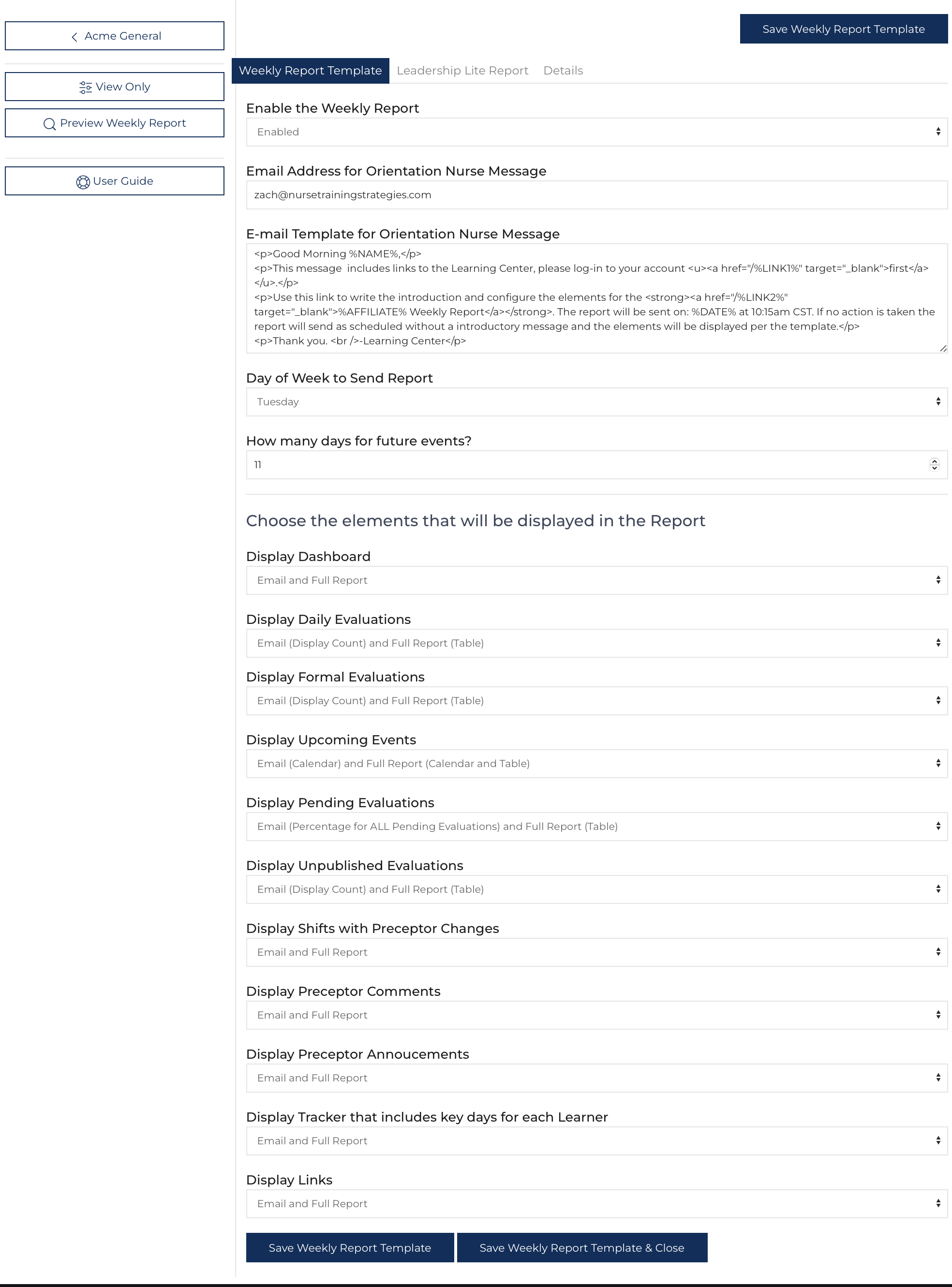
To edit the template, Click on Configurations from the main menu, then push the button
to the right of the Affiliate name[1].
Bear in mind the Weekly Report includes information for all roles within a given Affiliate.
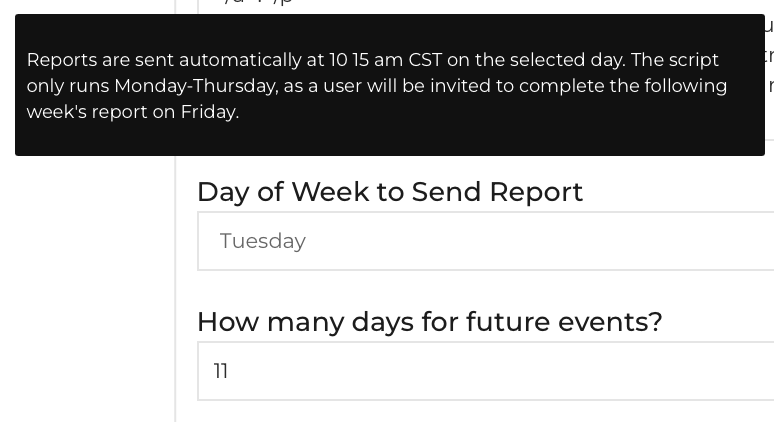
How many days for future events?: Integer: [7-21] (11)
Display Dashboard: Select 1: [Hidden, Email and Full Report, Full Report Only]
Display Daily Evaluations: Select 1: [Hidden, Email (Display Count) and Full Report (Table), Full Report Only]
Display Formal Evaluations: Select 1: [Hidden, Email (Display Count) and Full Report (Table), Full Report Only]
Display Upcoming Events: Select 1: [Hidden, Email (Calendar) and Full Report (Calendar and Table), Full Report Only]
Display Pending Evaluations: Select 1: [Hidden, Email (Percentage for ALL Pending Evaluations) and Full Report (Table), Limit to Learner Evaluations in Email and Full Report, Full Report Only]
Display Unpublished Evaluations: Select 1: [Hidden, Email (Display Count) and Full Report (Table), Full Report Only]
Display Shifts with Preceptor Changes: Select 1: [Hidden, Email and Full Report, Full Report Only]
Display Preceptor Comments: Select 1: [Hidden, Email and Full Report, Full Report Only]
Display Preceptor Announcements: Select 1: [Hidden, Email and Full Report, Full Report Only]
Display Tracker that includes key days for each Learner: Select 1: [Hidden, Email and Full Report, Full Report Only]
Display Links: Select 1: [Hidden, Email and Full Report, Full Report Only]
Lite Weekly Report
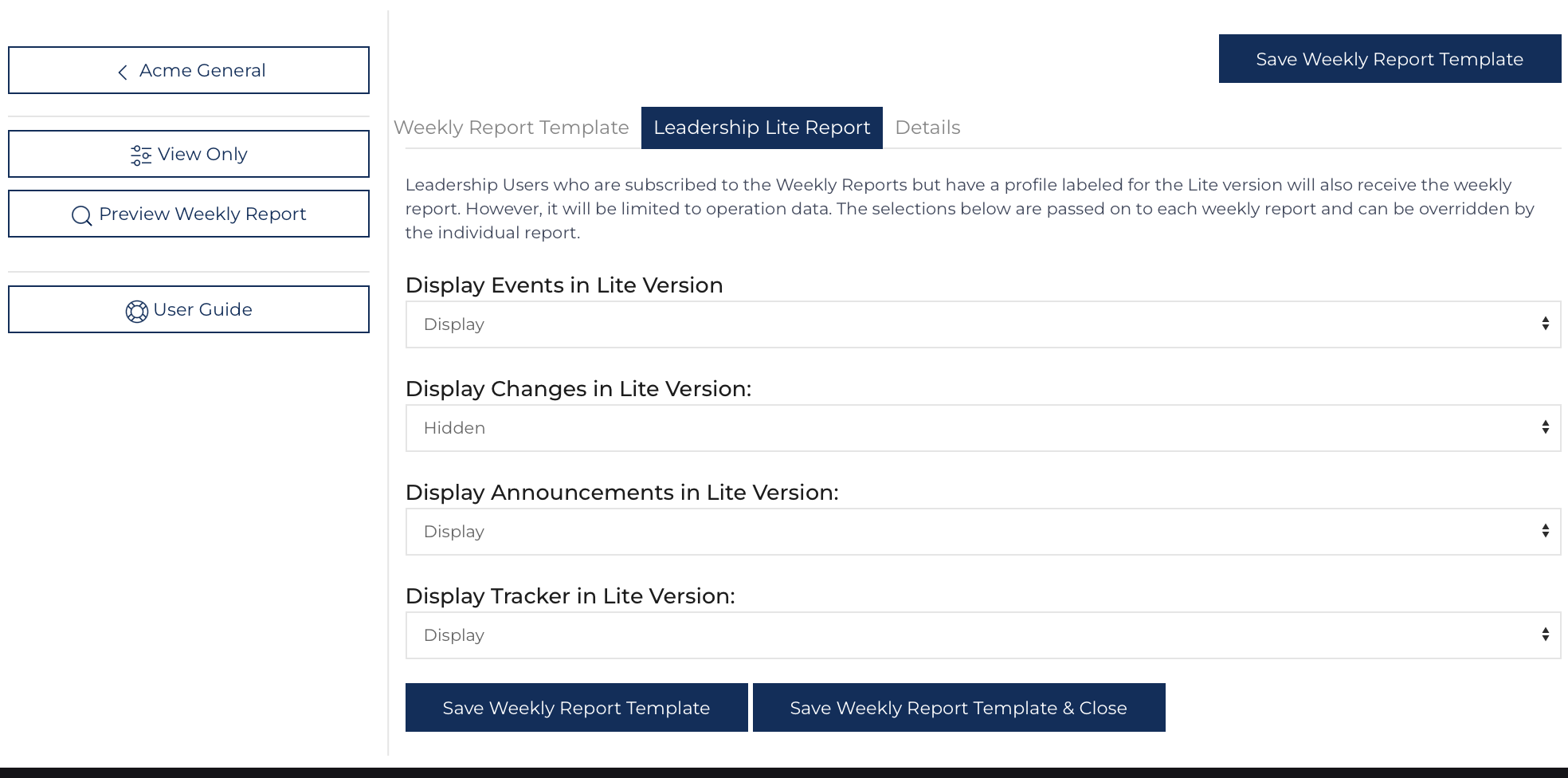
The Lite version of the report is prepared for those users who have been designated only to view operational details. The template initially defines each Lite report and can be further modified for each report. Throughout the site, these Leadership users cannot see any performance data, and their version of the weekly report is limited as well.
Display Events in Lite Version: Select 1: [Hidden, Display]
Display Changes in Lite Version: Select 1: [Hidden, Display]
Display Announcements in Lite Version: Select 1: [Hidden, Display]
Display Tracker in Lite Version: Select 1: [Hidden, Display]