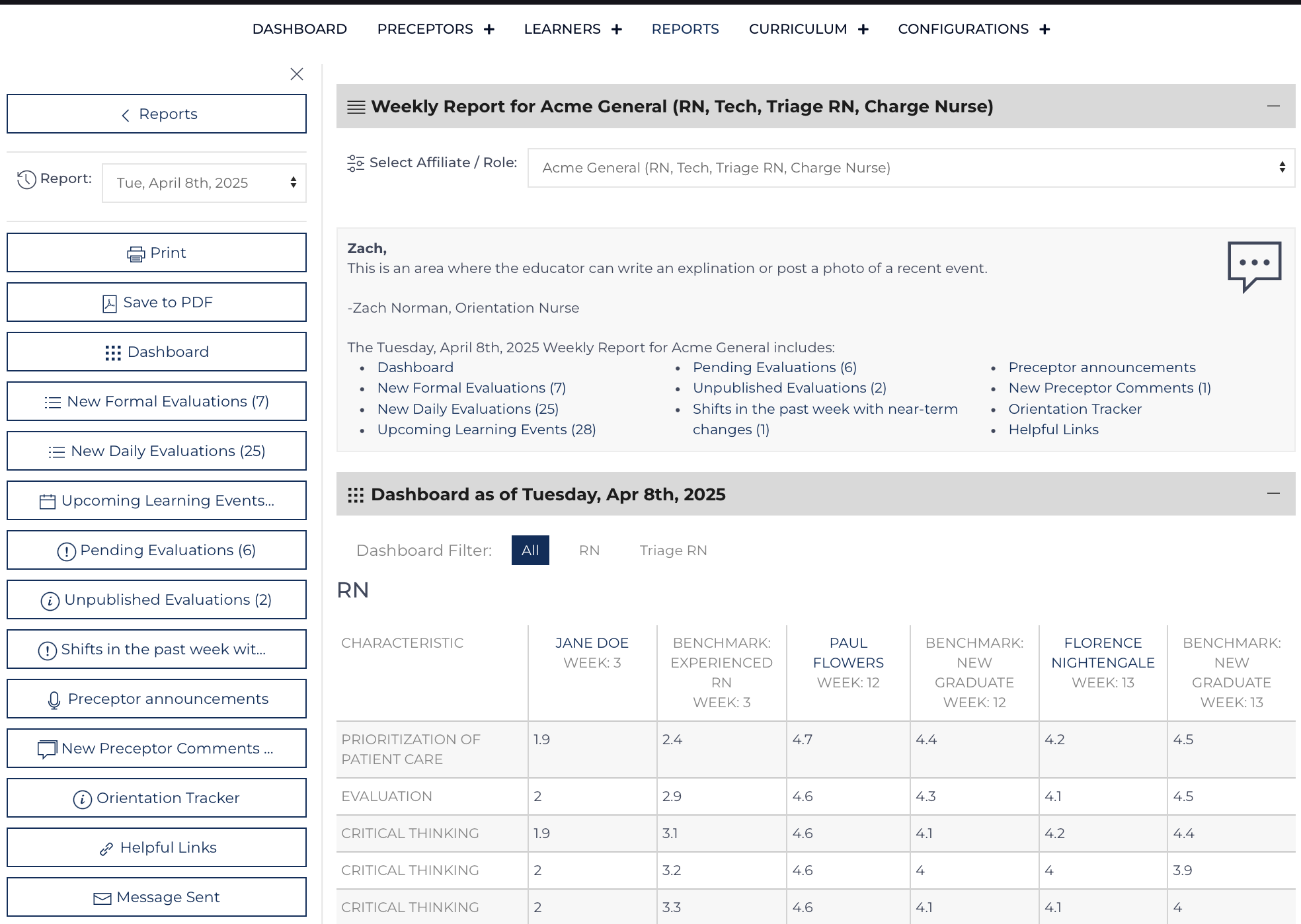
Links to the comprehensive reports that are sent on a designated day each week (Monday-Thursday) to subscribed users regarding upcoming learning, new data that has been collected and highlights from the previous week.
The message begins with personalized content that was prepared by an Orientation Nurse and then information is automatically compiled to offer a comprehensive review of orientation activities. Each section is displayed because there is content to report and because the template and Orientation Nurse who prepared the message selected to include the information.
Report Message & Editing Reports before sending
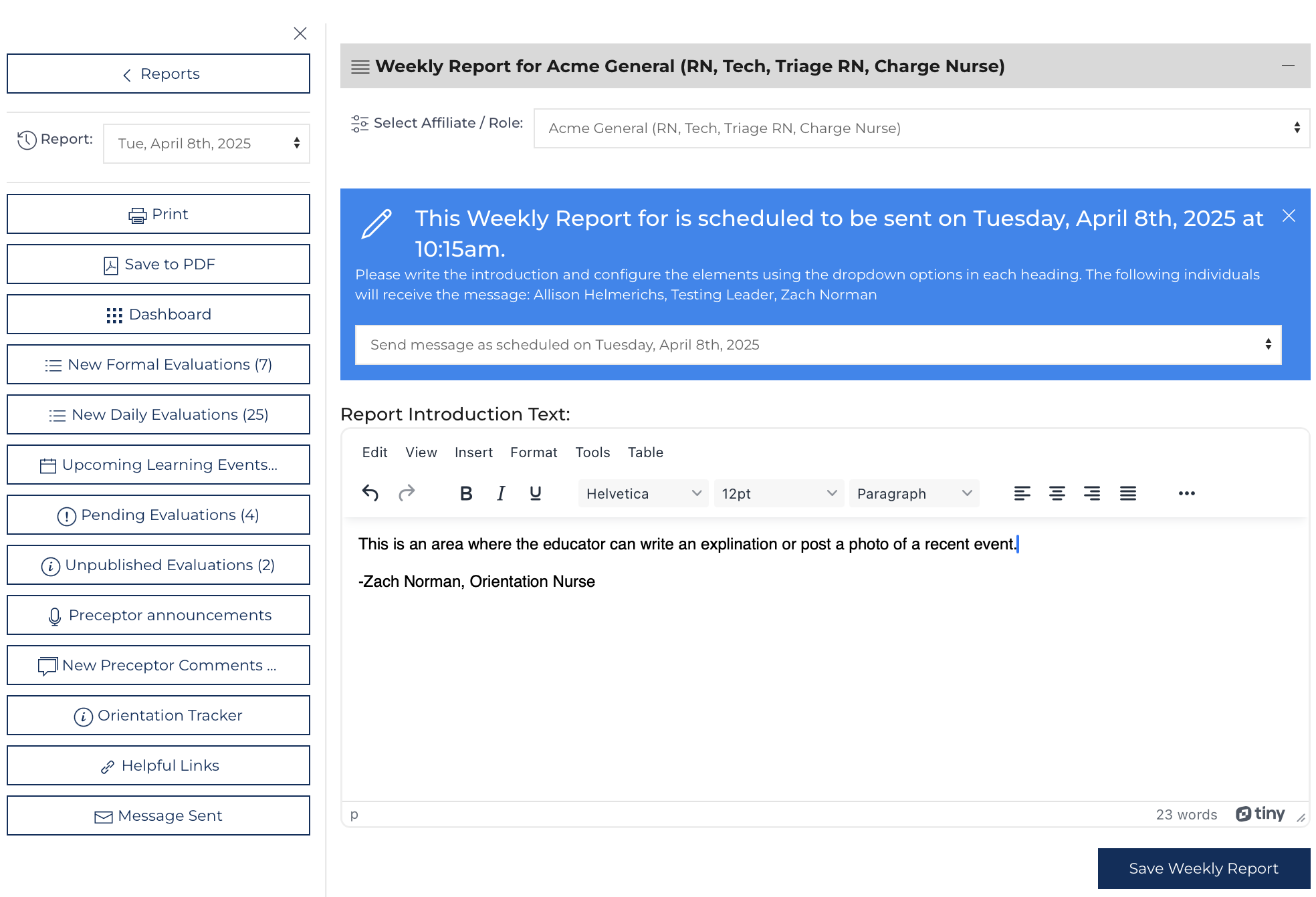
Each Friday the default user for the Affiliate is sent a message if any new data has been collected to report. That user is invited to edit the report before sending and is brought to a screen depicted in the figure to the right.
First, the user is asked to if the message should be sent as scheduled or hidden [blue information box]. Any Orientation Nurse or Leadership User can access this screen. It is only available from the Friday before the message is sent until 11:59pm the day before the message is sent. In the text area, write a summary, share photos that have been uploaded[1] or highlight any significant events.


The template will pass default values to each item but even elements that are hidden by the template can be toggled to be displayed on the full report if a user changes the report settings. If the section can be included in the lite version of the report, an additional dropdown will appear as the example highlighted in green in the figure to the above.
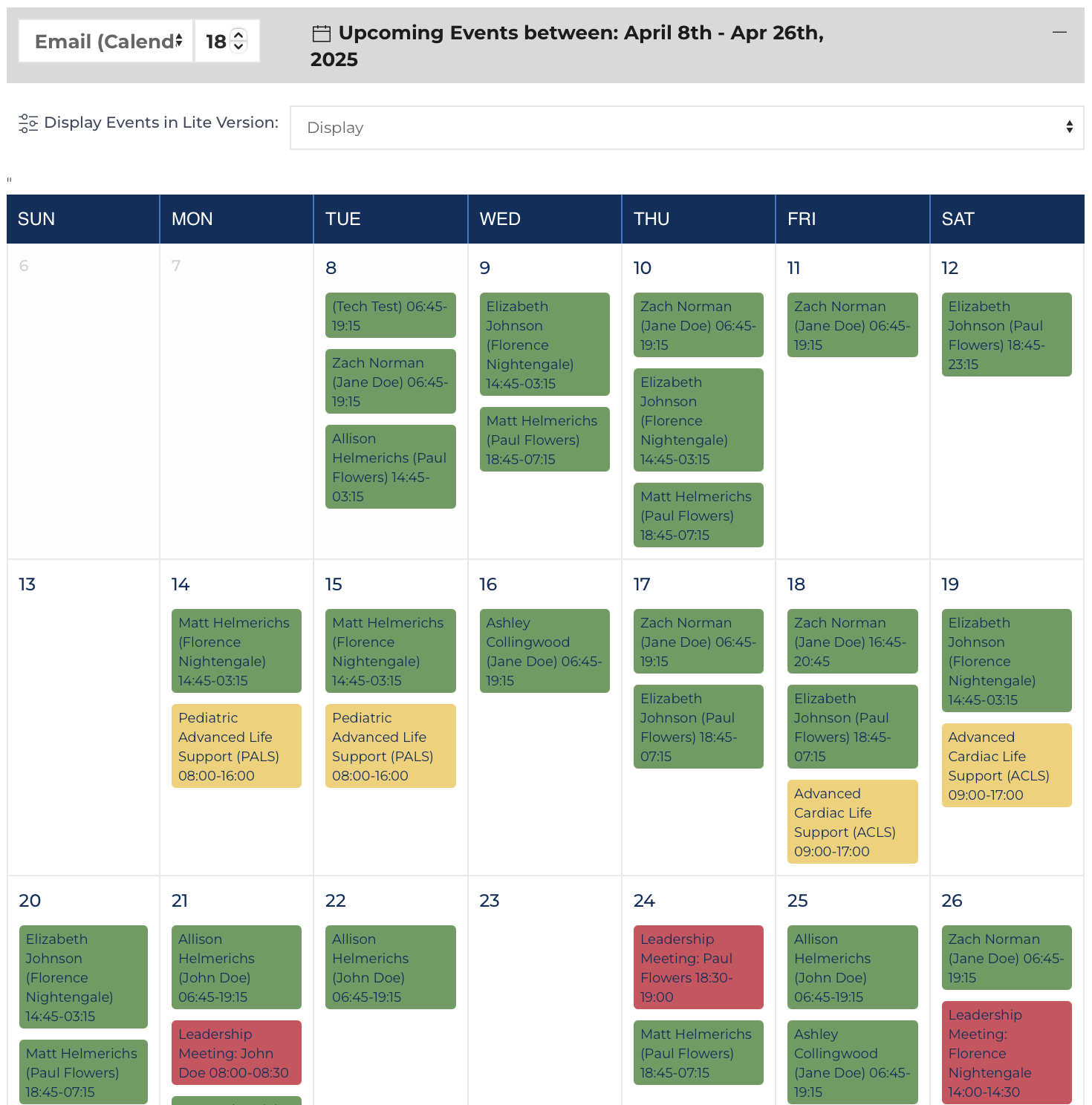
The Upcoming Events section includes a toggle for "Start Date" typically set to the "send date" for the report and the number of days included in the report. Any future looking element in the report uses these settings to determine the information included. By default the report is sent on Tuesday and includs 11 days of information (displaying content for the current week and week following). The example in the picture to the right was edited to show 18 days (an additional week of data).
Quick Links
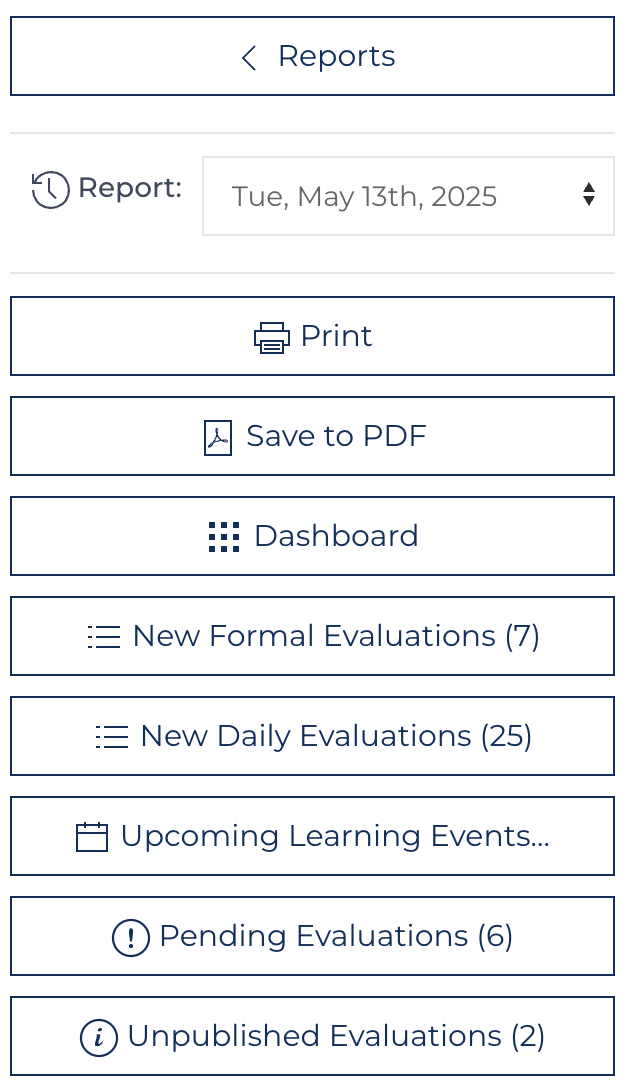
The weekly report is a comprehensive review of recent activities and upcoming activities. The range of defined by the template and can be adjusted as needed on individual reports.
The left-hand 1/4 of the screen has quick links that follow the user as they scroll. The drop-down allows the user to toggle between the current report and past reports. Clicking any link will scroll the user to the desired section of the report. There is a quick link for each section highlighted below.
Dashboard
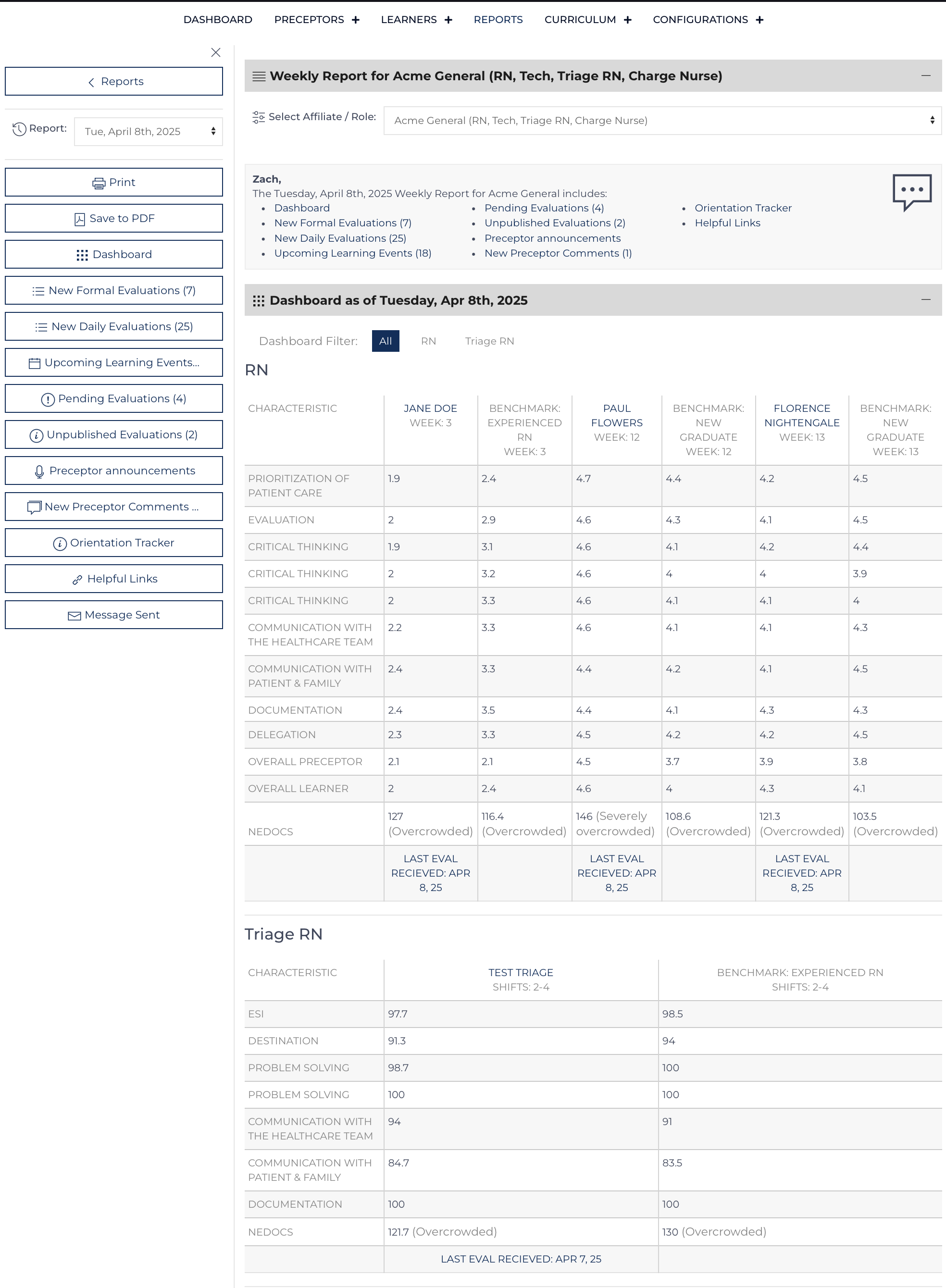
The dashboard on the weekly report is displayed as it would be on the homepage on the date the report is sent. Dashboards are included for each role that has new data. The example to the right shows two roles RN & Triage RN, each with a different rubric and questions. The report and email script can display both, uniquely providing an at-a-glance update on a learner's progress vs. the benchmark.
New Evaluations
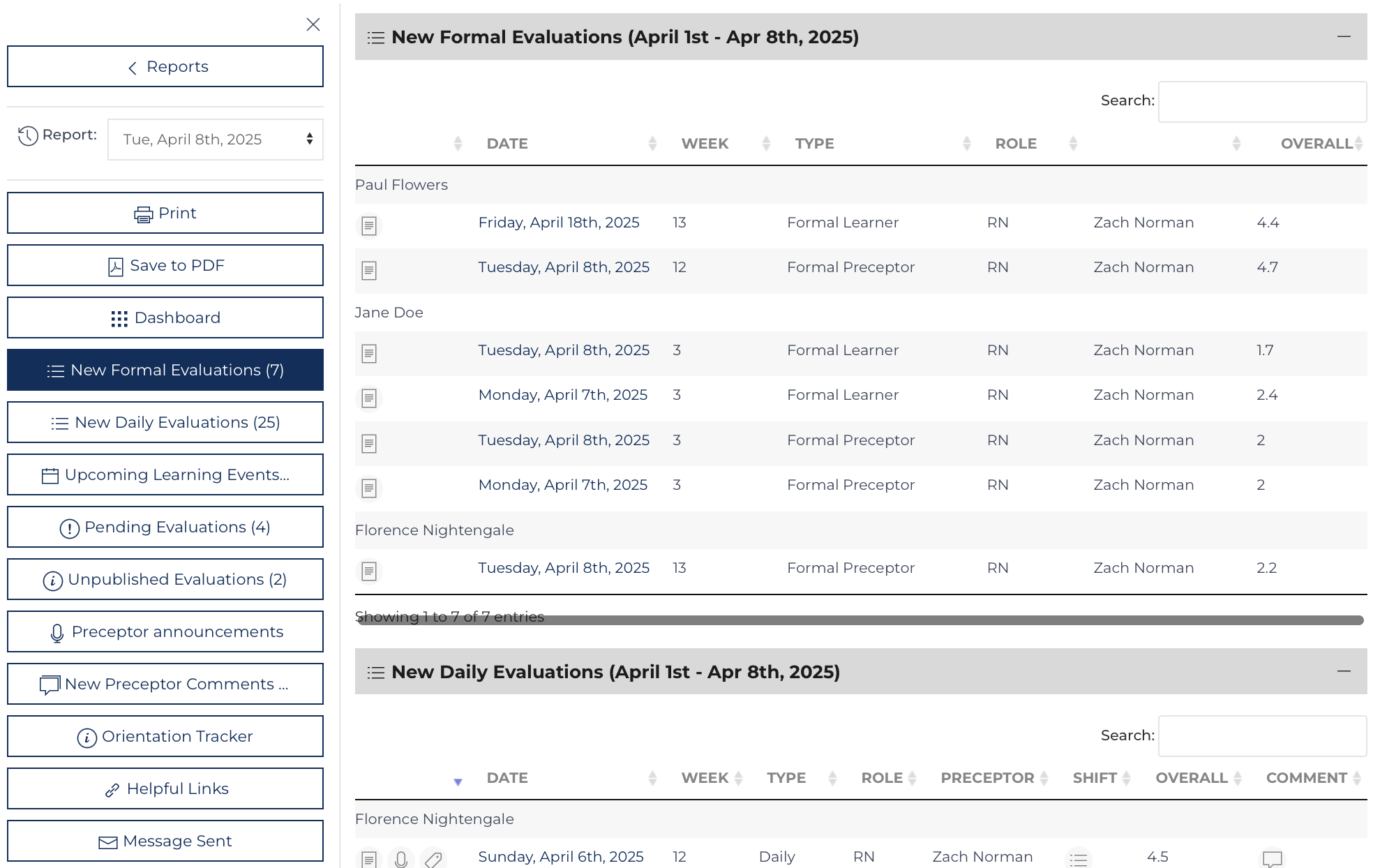
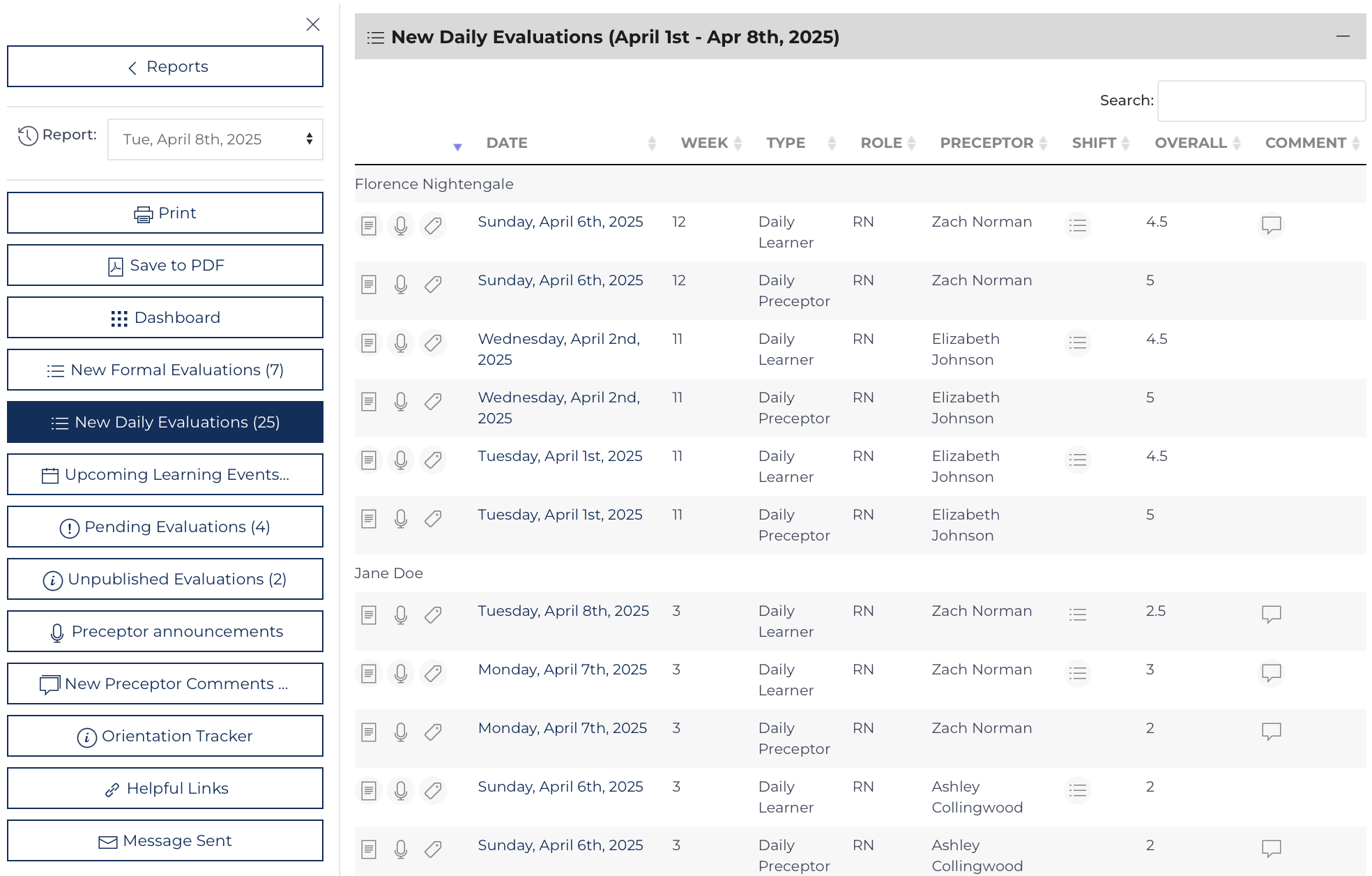
Listing of evaluations are summarized in the e-mail as bullet points but listed in the Full report as sortable and searchable data tables first for formal evaluations if there are any new items then for new daily evaluations.
Upcoming Events
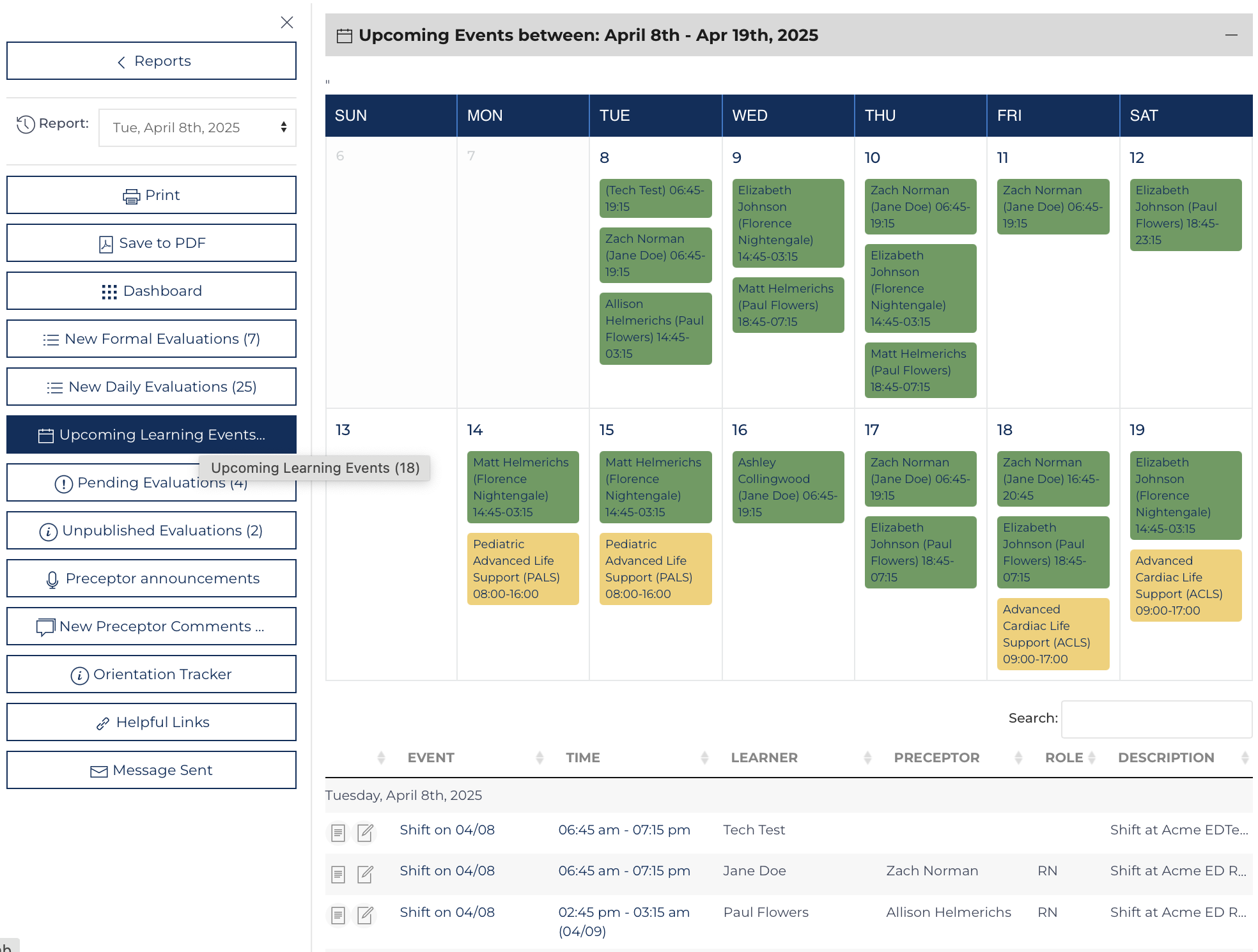
The upcoming events section in the e-mail version of the report only includes the calendar, whereas the full report on the website also includes a listview that is sortable and searchable. The links in the report also connect to the Schedule Report that shows a comprehensive listing of upcoming and past events.
Pending & Unpublished Evaluations
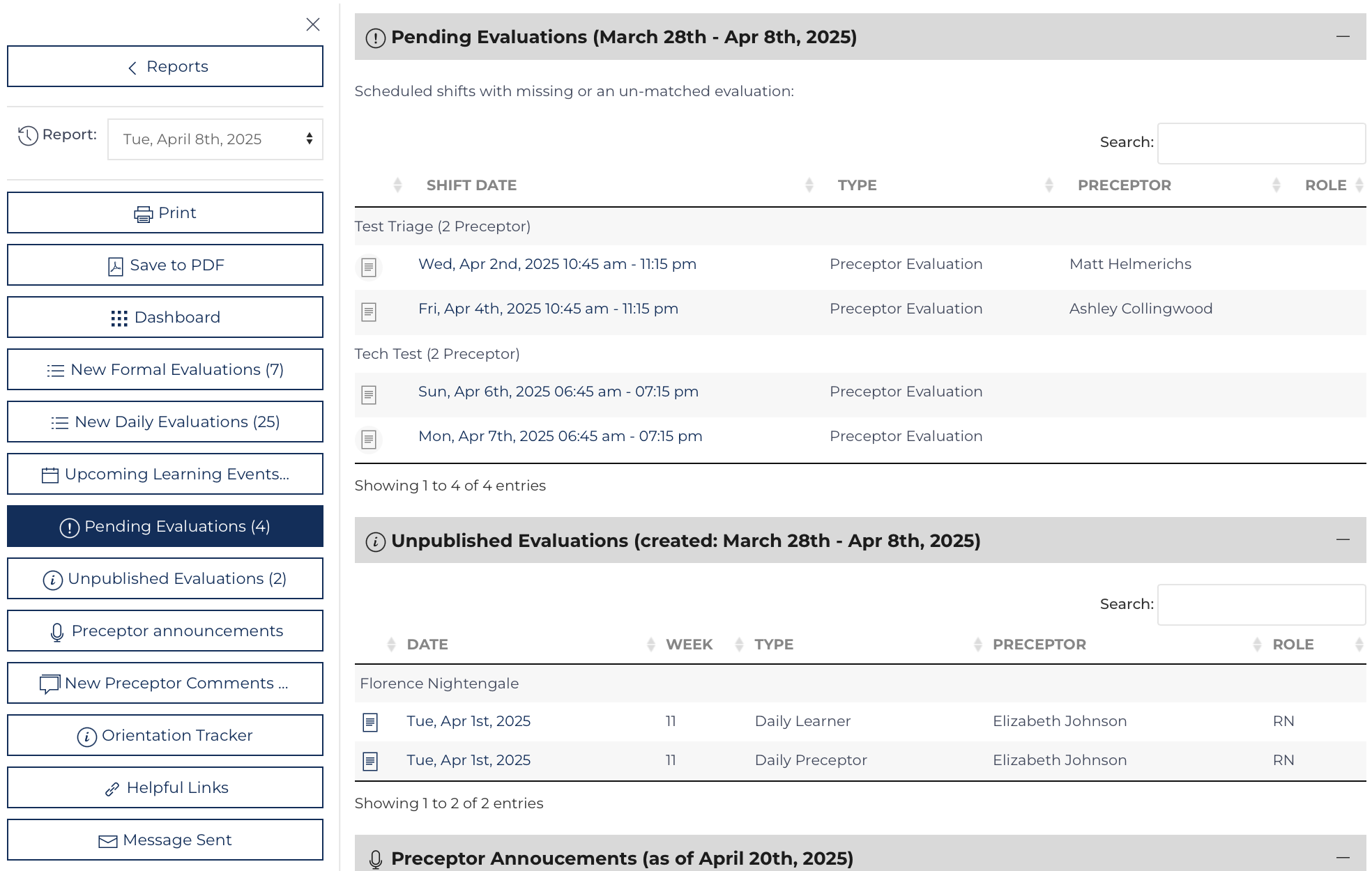
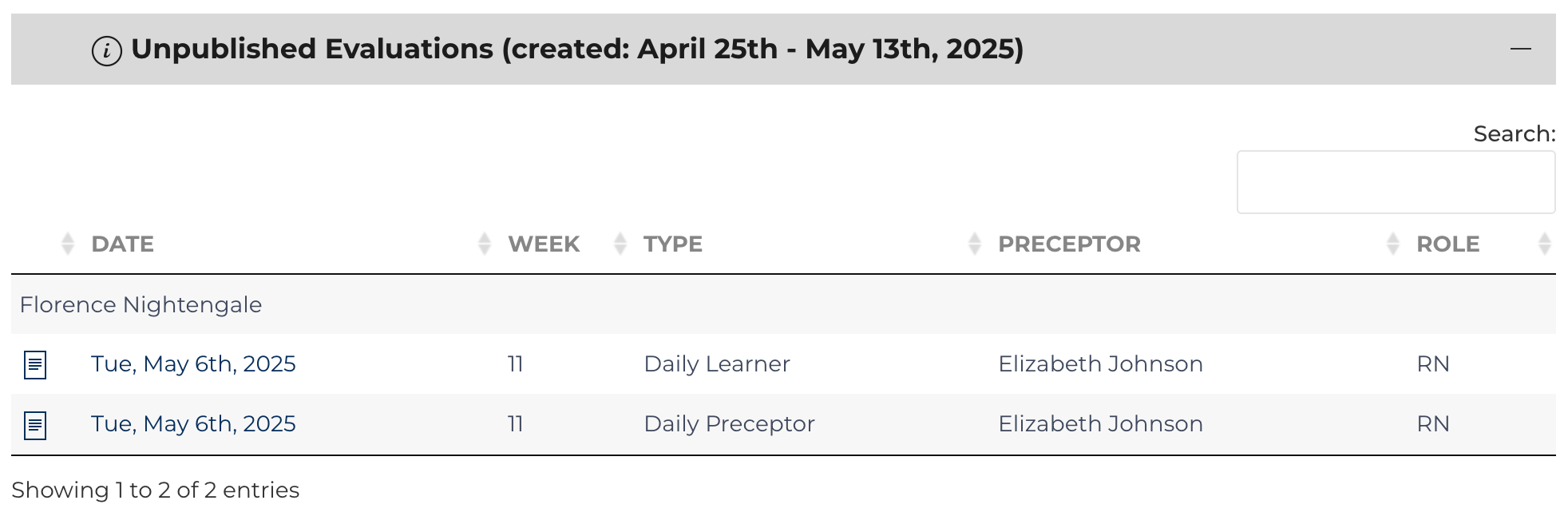
The pending evaluations list view is summarized in the e-mail version and displays a sortable, searchable list view. This section produces an alert if too many evaluations have not been submitted and are pending. The Unpublished evaluations section is displayed only to Orientation Nurses as they are the users who can choose to publish evaluations[2].
Changed Events
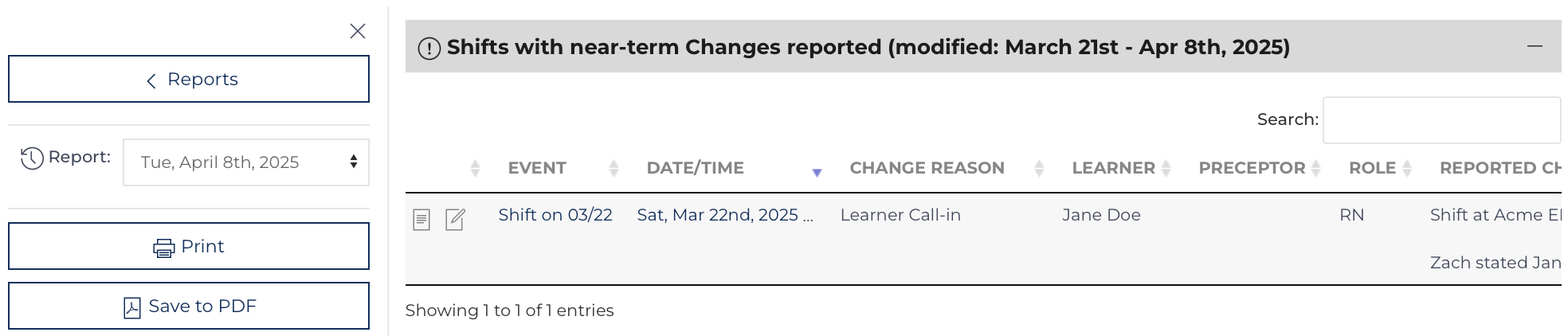
The changed events list view only appears if any events reported a preceptor change or absence from a required learning event.
Preceptor Announcements
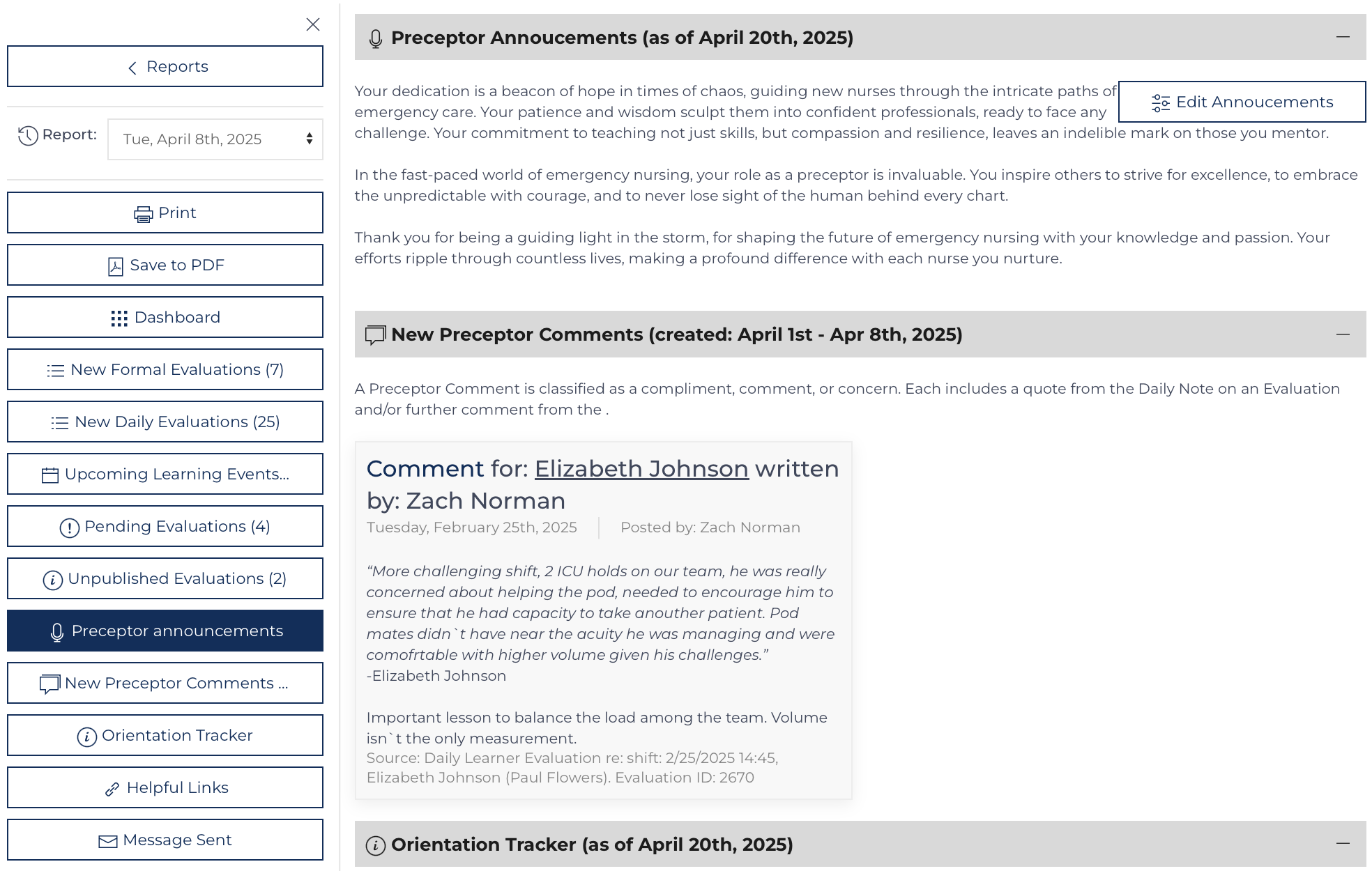
The Preceptor Announcement section is limited in that it is showing the announcements as of the day the full report is accessed. The historic Preceptor Announcements are not saved; this is a limitation of the report.
Preceptor Comments

The Preceptor Comments section is designed to highlight the hard work and contributions that preceptors are making. Preceptor comments can be designated as positive, neutral, negative, or a learner concern. This section will display any of those comments. As a best practice, comments that are negative or a learner's concern should be individually addressed with the appropriate leaders and not be highlighted in a large-scale report. If documenting Preceptor Comments as Negative or a Learner Concern, consider hiding this section. Use targetted communication tools such as the Preceptor Assessment or Learner Action Plan.
Orientation Tracker
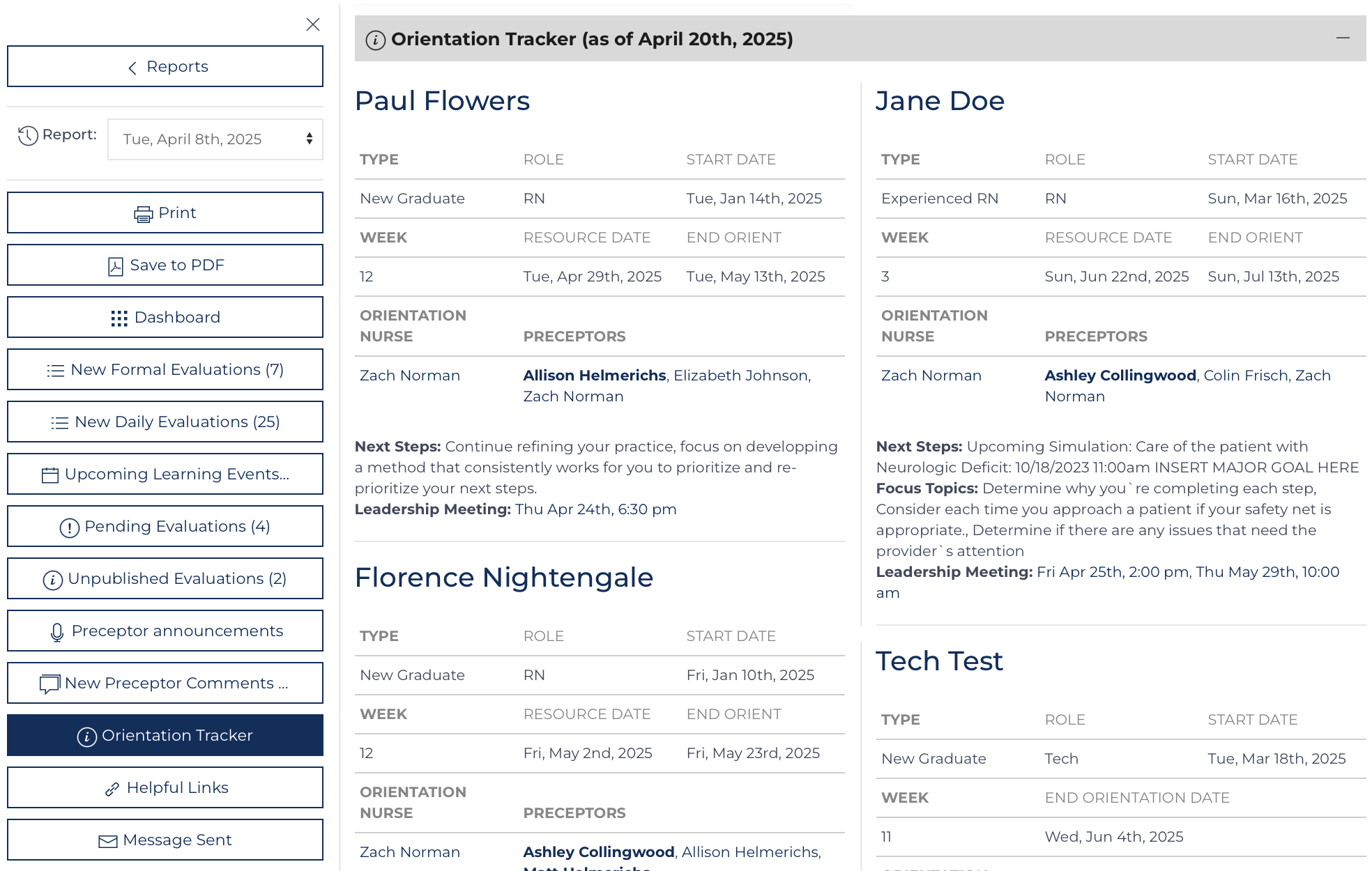
The Orientation Tracker on the weekly report is displayed as it would be on the homepage on the date the report is sent.
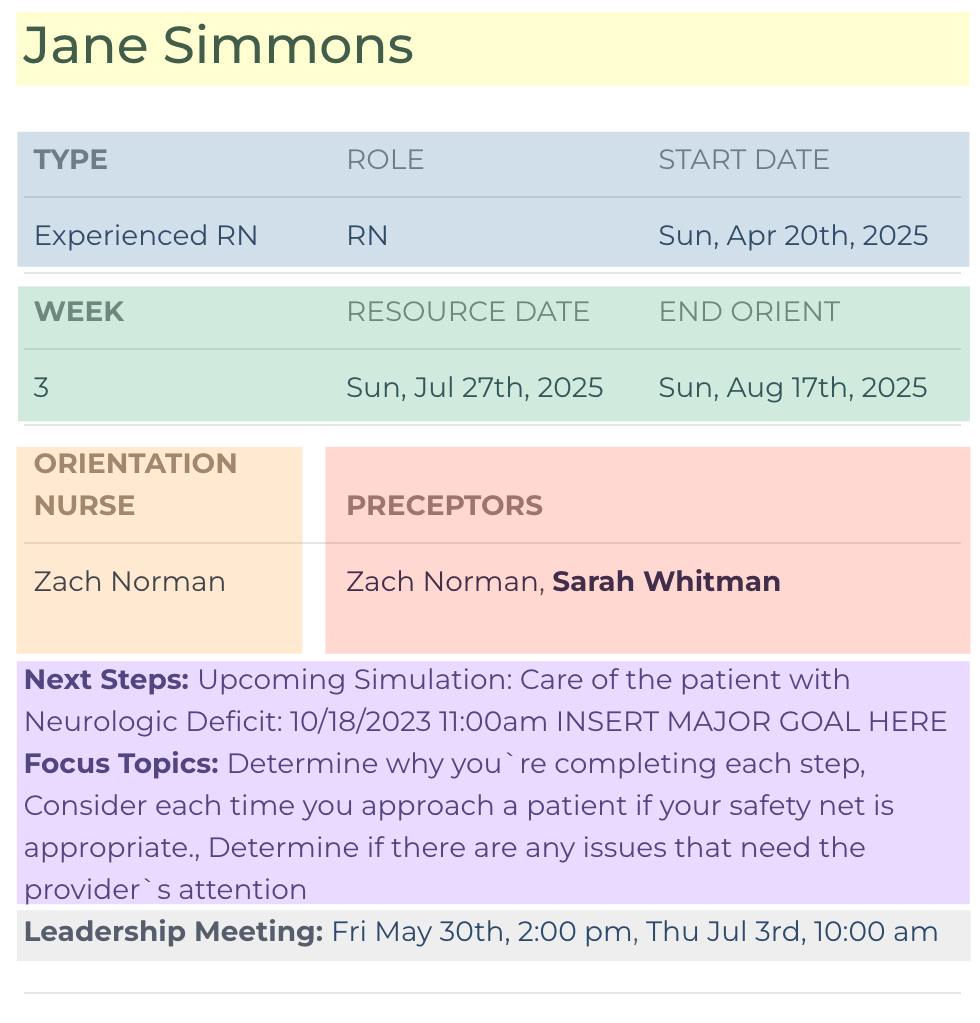
- Name (highlighted yellow)
- Background information (highlighted blue)
- Current orientation transition plan (highlighted green)
- Orientation Nurse (point-person -- highlighted orange), Preceptors (highlighted red - primary preceptors are bold)
- Current focus and goal summary (highlighted purple)
- Leadership meeting (highlighted grey)
Helpful Links

The final element includes links to other relevant reports and tools available through the Learning Center.
- Reports links to reports page.
- Review Dashboard links to the review dashbaord for further retrospective analysis of orientation activities.
- Upcoming Events links to the Schedule Report
- Update Profile links to the user's page where the user can choose to update their communication preferences and subscriptions.
- Print - prints the report
- Save PDF - converts each section of the document to an image and compiles it as a .pdf document. This action takes several minutes before a document downloads.
Emailed Message
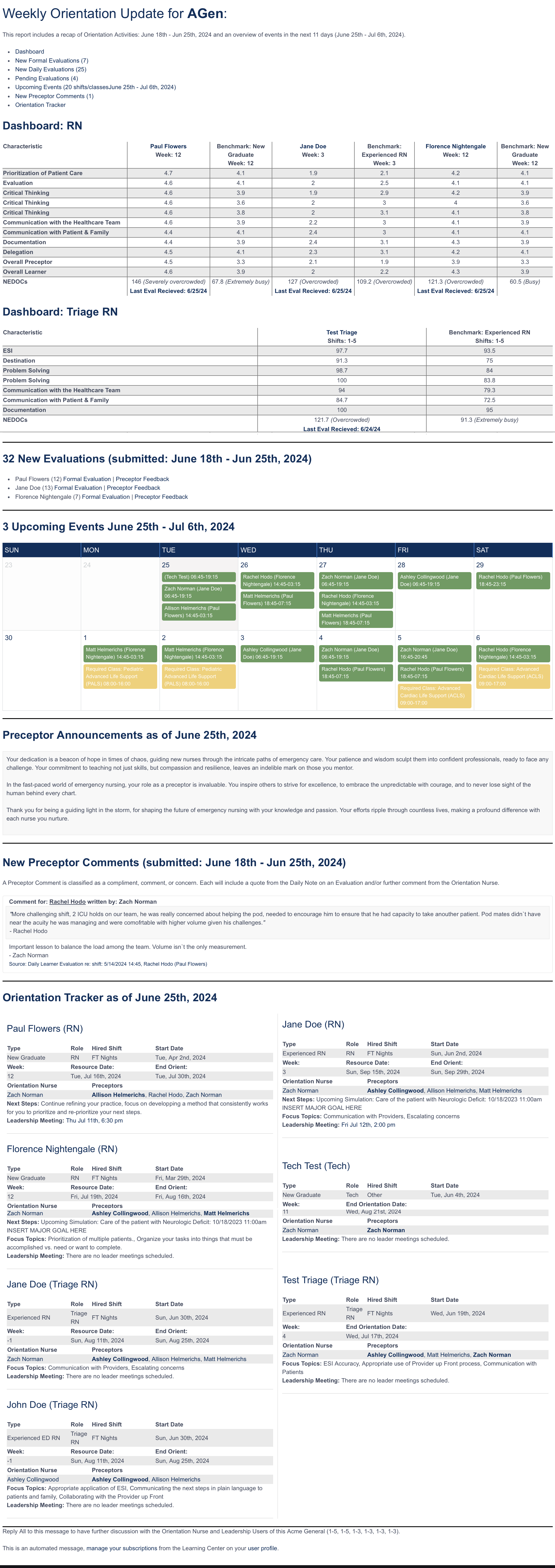
The e-mail version of the Weekly Report is a comprehensive message that highlights current progress, upcoming events, preceptor communication, and contributions. The message, once sent, is documented and saved in the Messages data table, as other automated messages are saved.
The script that sends this message also analyzes pending evaluations that have been pending longer than the prescribed time limit and removes those elements from the To Do List of various users. The script runs Monday-Thursday at 10:15 am CST. The Weekly Report record sends a message based on the day of the week specified by the template.