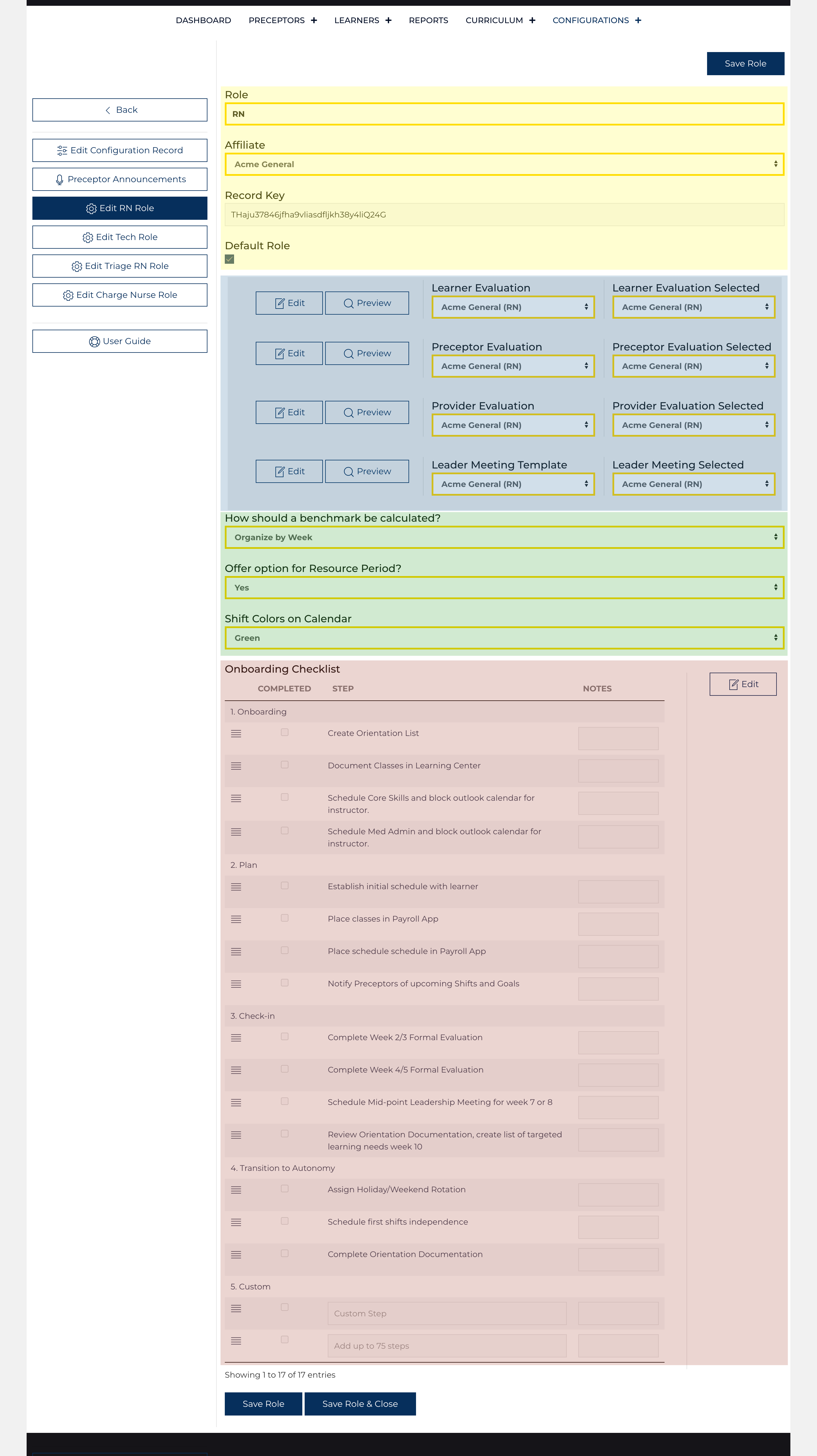
The Role Configuration Screen always appears as a form; like the Affiliate Configuration records, a user must be granted permission on their User record to edit the nested role configuration records under their parent Affiliate Configuration.
General Information regarding the role is highlighted in yellow
Role: Type Unique Name
Affiliate: Select the parent Affiliate Configuration record
Key: 30 Character Key supplied by developer[1]
Default: One record must be designated as the default role for the Affiliate.
The Template Selection area is highlighted in blue.
Role Controls are highlighted in green.
Role Orientation Checklist is highlighted in red.
Select Templates for Role
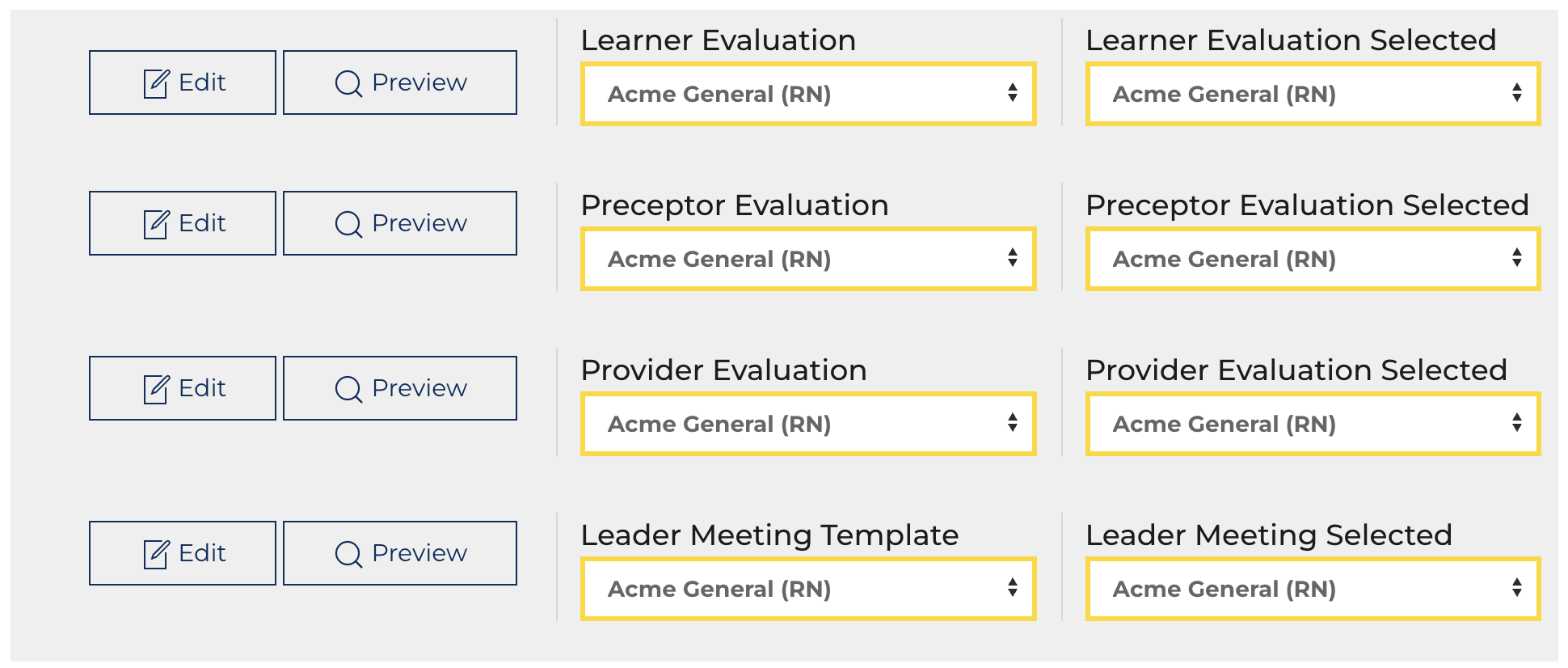
Each Role has four templates
Use the links to or each template.
The first column matches the template that was created with this role record to the role, nesting the records. The second column allows the user to select a template from the role to use when completing the activity related to the role. Most of the time, the template for the role is the template selected; however, some organizations opt to use a learner and provider evaluation that is specific to the role, but the same Preceptor evaluation and Leader Meeting Template.
Best Practice: Evaluation Templates items should not be routinely changed. This will corrupt the validity of the benchmark groups as they will no longer be answering the same questions/topics.
Role Controls
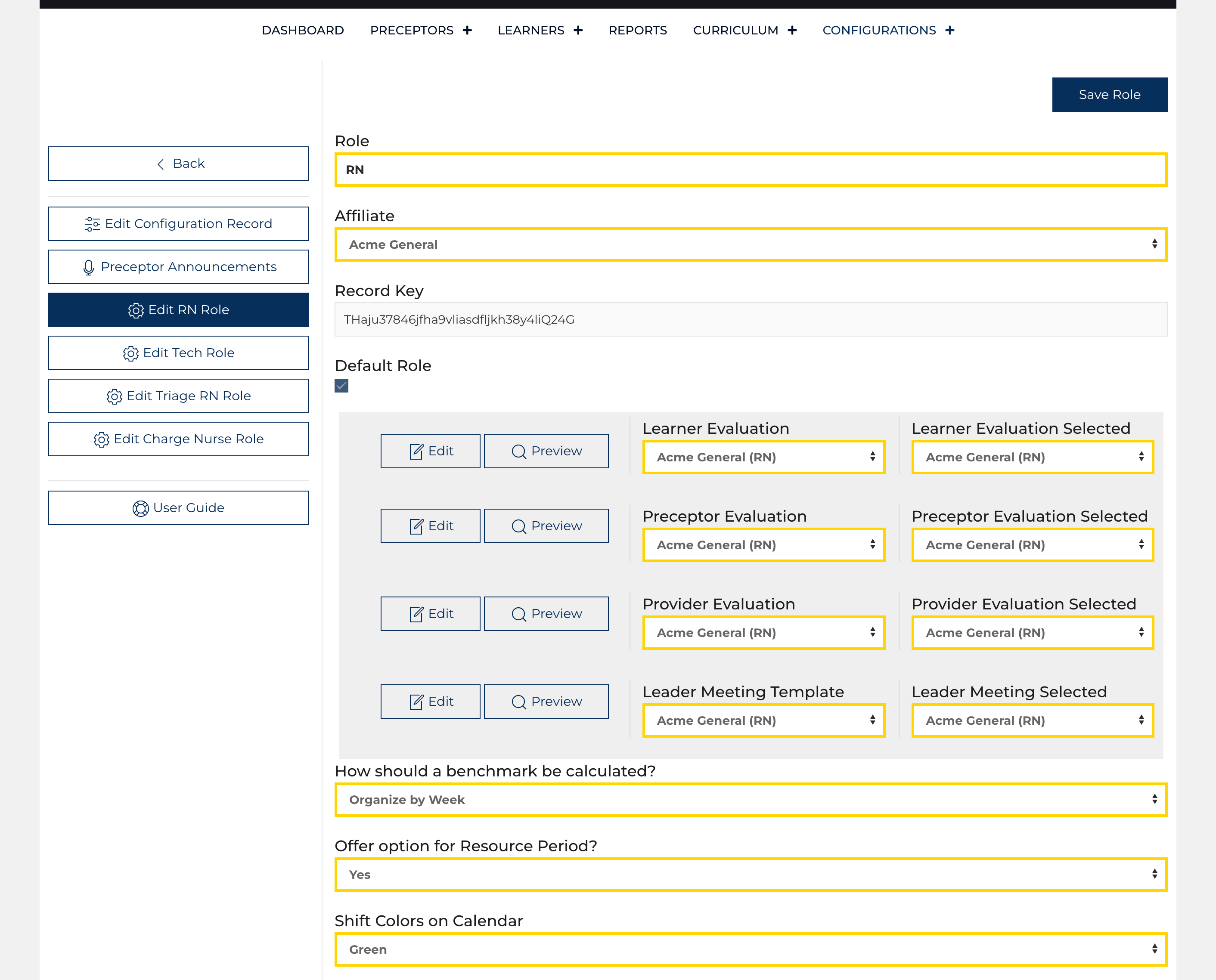
How should a benchmark be calculated? Select 1: [Disable Benchmark, Organize by Week, +/- 1 Shift, +/- 2 Shift, +/- 3 Shift]
The benchmark is displayed in several locations throughout the Learning Center (Dashboard, Learner and Leader Views, Evaluation View, Report Card, etc.) Each time it is displayed, it is calculated on demand using the following parameters.
- The benchmark is made up of Learners who have been designated as members.
- The Learner must be part of the same Affiliate.
- The Learner Types must match.
- The Groupings match the week or shift grouping.
Offer option for Resource Period? Select 1: [Yes, No]
Shift Colors on Calendar Select 1: [Green, Light Green, Teal, Purple, Pink, Brown, Light Orange, Grey]
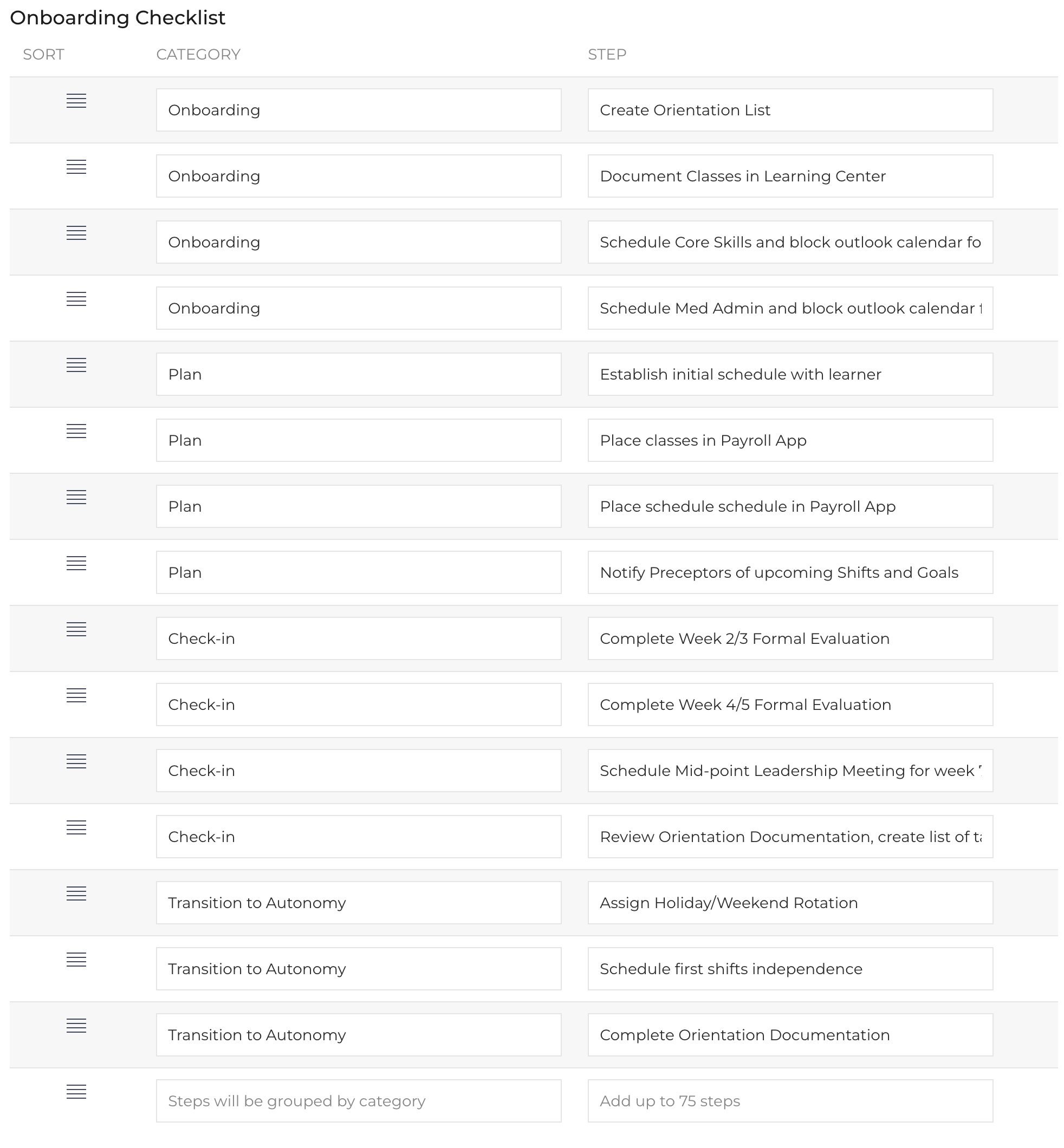
Onboarding Checklist for Role
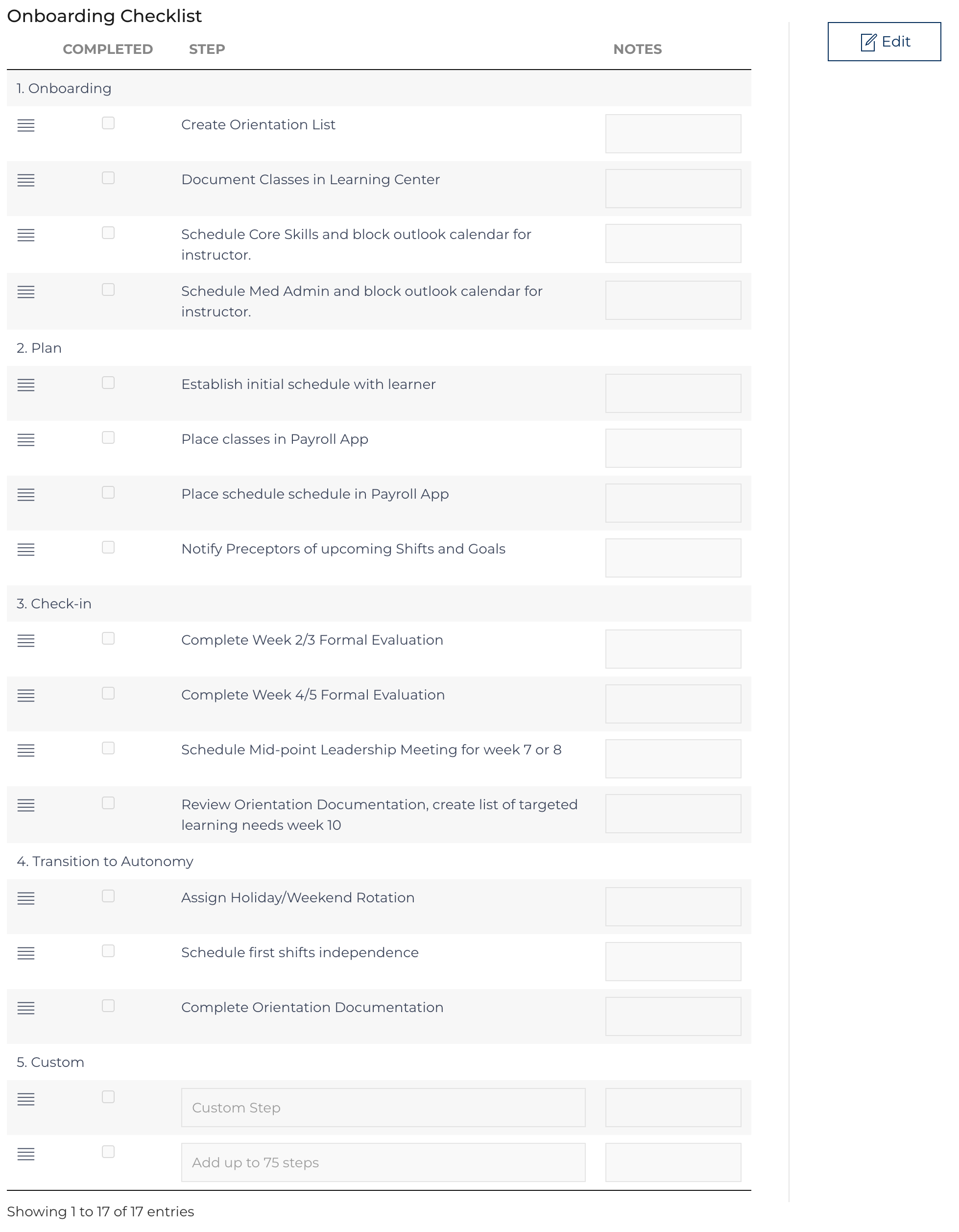
Up to 75 tasks can be placed on the list that forms a template for each Learner who enters this role. The list can be updated by multiple users; each item tracks the user who updated it and when.
- Each item is categorized, and then the task is described.
- The tasks can be re-ordered by dragging and dropping the task into the desired order.
Click to leave the preview shown in the figure to the right to make adjustments to the tasks as shown in the image below.