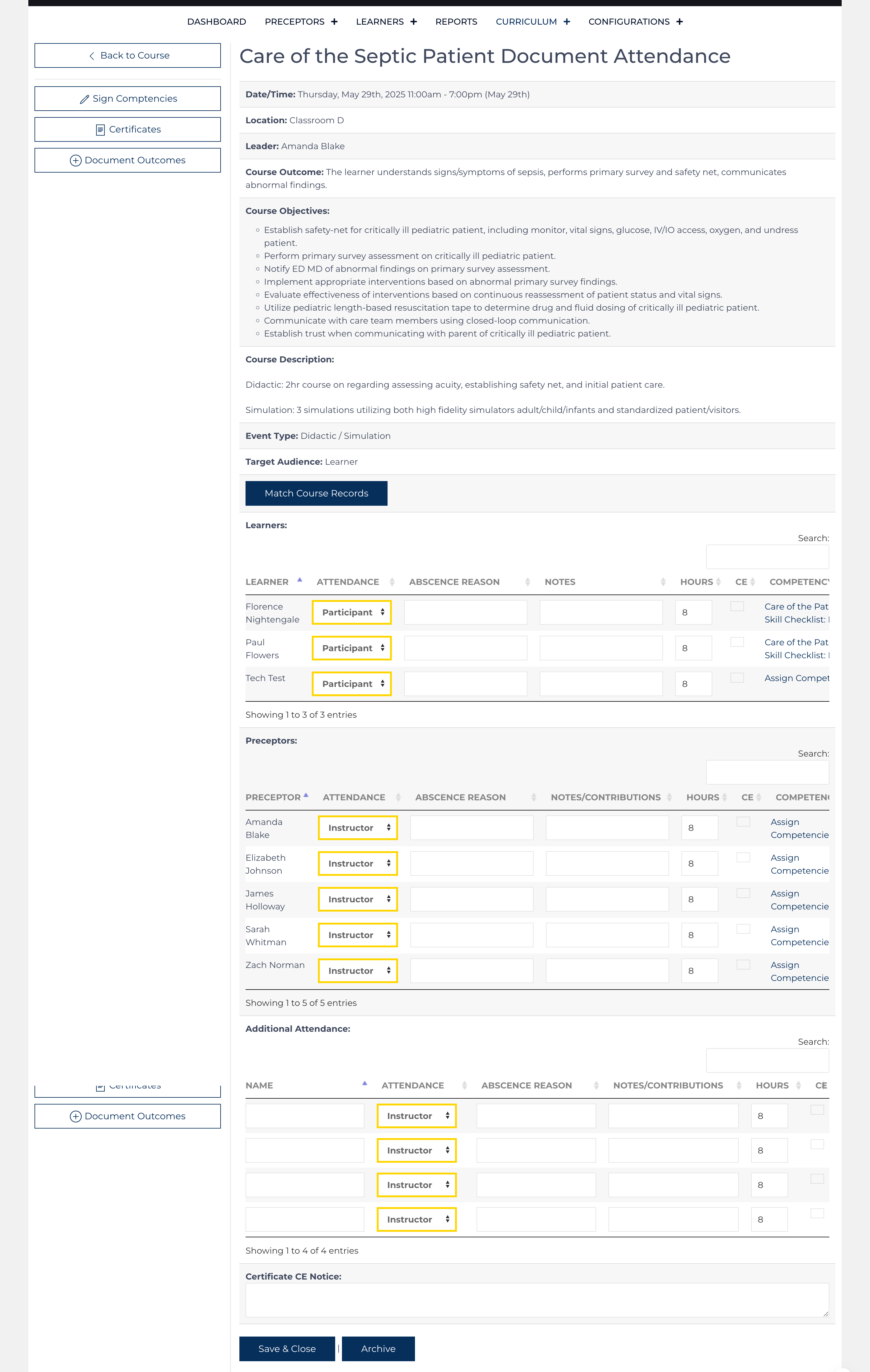
The Course Grade function is an optional tool that can be used to:
- Document attendance as well as a score for the course
- Create certificates for instructors and participants
- Document outcomes associated with the curriculum
- Complete competency documentation
The Curriculum record controls the implementation of the Course Grade function for each course. To utilize the function, edit the curriculum record and select "Attendance only" or "Attendance and Grade each Participant" from the drop-down. Automatically, when the course reaches the Start Date/Time, the Course Leader will be sent an email inviting them to complete the Course Grade form.

Documentation
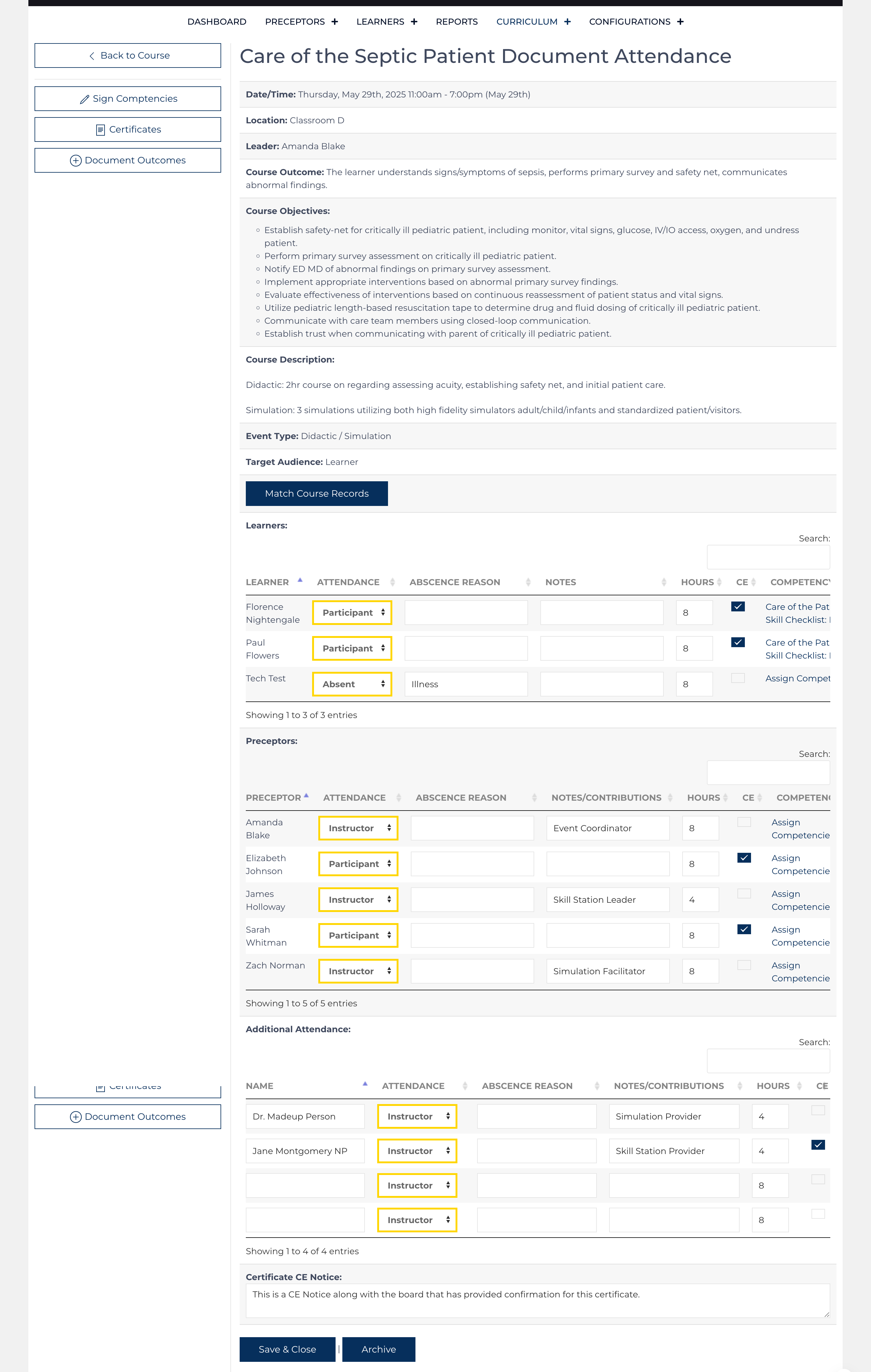
At the time the course begins, the information from the Curriculum record and the nested Course record are passed to the Course Grade record. For each Learner, Preceptor, and Additional Attendee who had been designated to attend the event, a line is created on the form.
- Designate each as present by selecting Participant or Instructor
- Document an absence by selecting Absent and indicating a reason in the next column.
This action will remove the curriculum from their transcript and also place a notice in the weekly report/dashboard regarding the absence. - Place notes or indicate the contribution each instructor made.
- Indicate the score a participant achieved during the course. (optional)
- Document the number of hours the activity lasted and indicate if these were CE hours.
- Utilize the link to assign the learner/preceptor a competency document.
Click when the documentation is complete.
Use if this Course Grade record needs to be removed[1].
Certificates
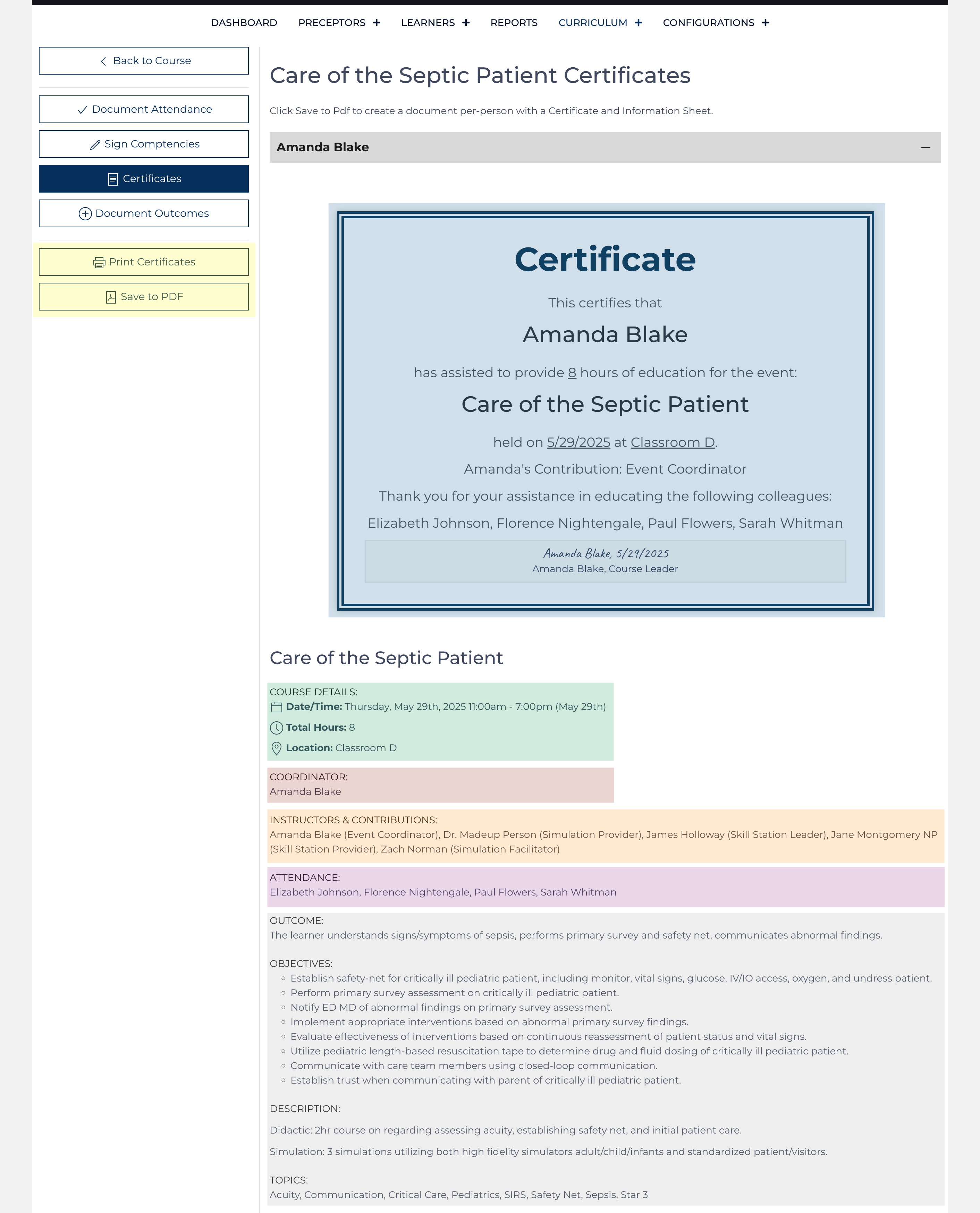

The Certificate is highlighted in blue and contains a concise recap of the learning event.
The Information sheet follows and includes general course information (highlighted in green), course leader (highlighted in red), instructors[3] (highlighted in orange), participants (highlighted in purple), and the course outcomes, objectives, description, and topic keywords (highlighted in grey).
The information on the certificate and course information sheet is produced from the course grade record, which is obtained from the associated curriculum and nested course record at the time the event starts. To have further updates matched to the Course Grade record from the associated Curriculum record and nested Course record, the Course Grade record must be archived[1].
Competency Documentation
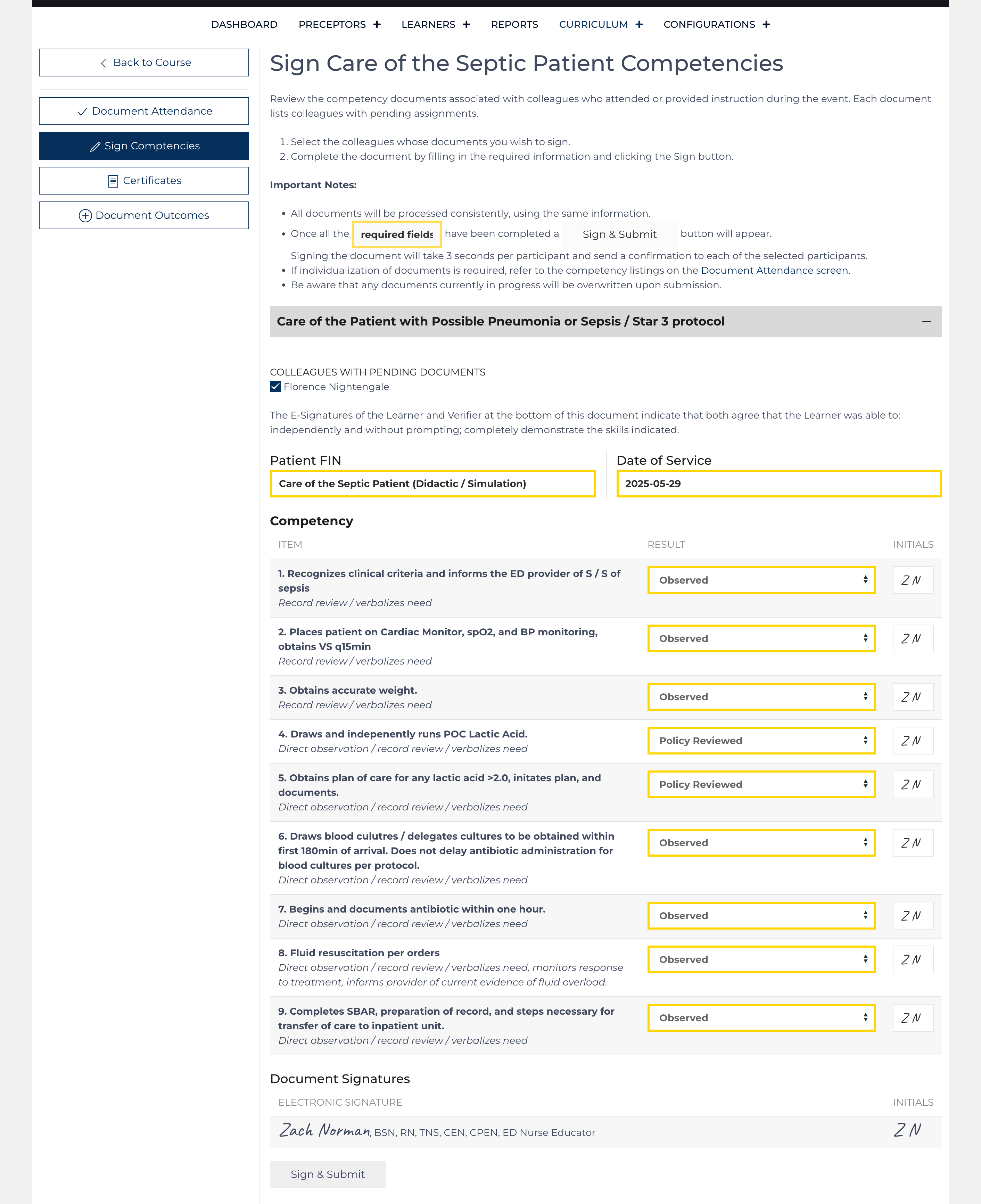
Use the Course Grade function to sign competency documents for all participants who have the document signed. The documentation can be partially completed and saved. When signing from this function, if a line has already been started and signed, it will be overwritten with the user who completes the Course Grade document.
Fill in the fields highlighted in yellow to sign off on the row.
The Electronic Signature of the user will be added to the document when saving the document.
Patient Outcomes
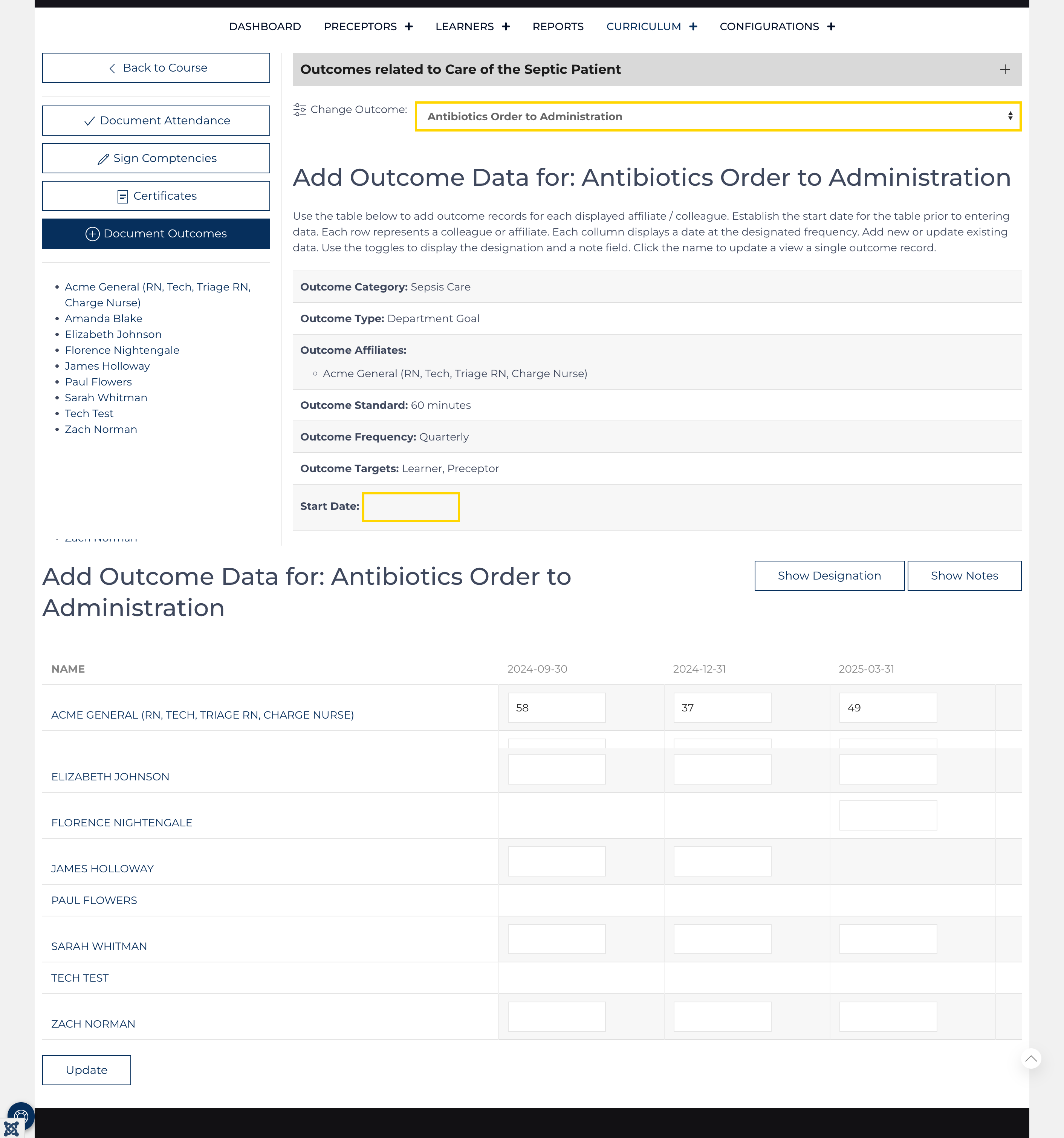
The ultimate measure of success of an education program is to measure associated patient outcomes. Does participating in a learning event produce a practice change? How long does it last? Does the practitioner need recurrent training to maintain clinical excellence?
Those questions will remain unanswered unless outcomes are monitored nurse by nurse. This function allows the user to document outcomes for each participant and instructor. Leaving a row or cell blank just skips creating an outcome record for that date or provider.